Uploading a Setup to a Display
Overview
Uploading a setup programs the current setup into the Display Module.
Tip
View the Setup Checker to ensure there are no setup errors or warnings prior to programming the setup.
See Setup Checker
Display Module Selection
Ensure that the Display Module is attached to the PC. Ethernet based Display Modules may be attached directly to the PC with an ethernet cable or to a Local Area Network (LAN).
Display Modules that connect using USB should show a special screen once attached to the PC.
Select F7. A dialog will be shown to allow selection of the Display Module that should be programmed:
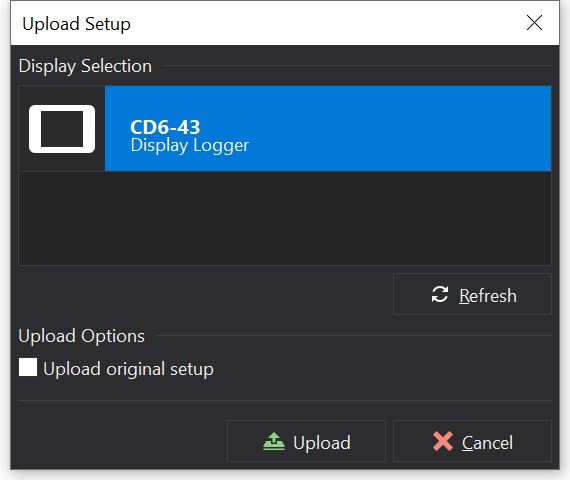
Upload Setup Dialog
Select the Display Module to be programmed from the list. Typically there will only be one so the first item is selected by default.
Upload Original Setup
Depending upon the type of Display Module, there may be the option Upload Original Setup. When programming displays, the setup file is compiled into a more compact format that is understood by the display. If Upload Original Setup is checked, then the original setup file will also be programmed into the display to allow later recovery of the original setup used to program the display from the Display Module itself using the command .
Starting the Programming Procedure
Click the  Upload Setup button to begin programming the setup into the display.
Programming Progress
The progress of the procedure will be shown, along with a log of messages:
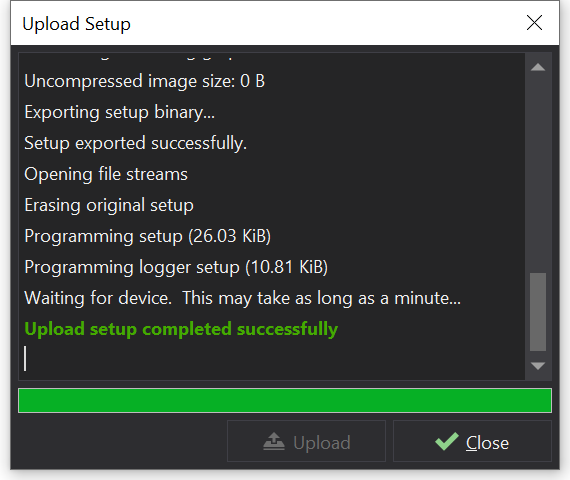
Upload Setup Progress
If the process fails, refer to the message log as it may identify the cause.
Once the programming is complete, the Display Module may be disconnected from the PC. For USB connections, detaching the USB cable should cause the setup to run on the display.