Unique Fonts
Overview
provides a way to view a list of all fonts used by gauges in the setup.
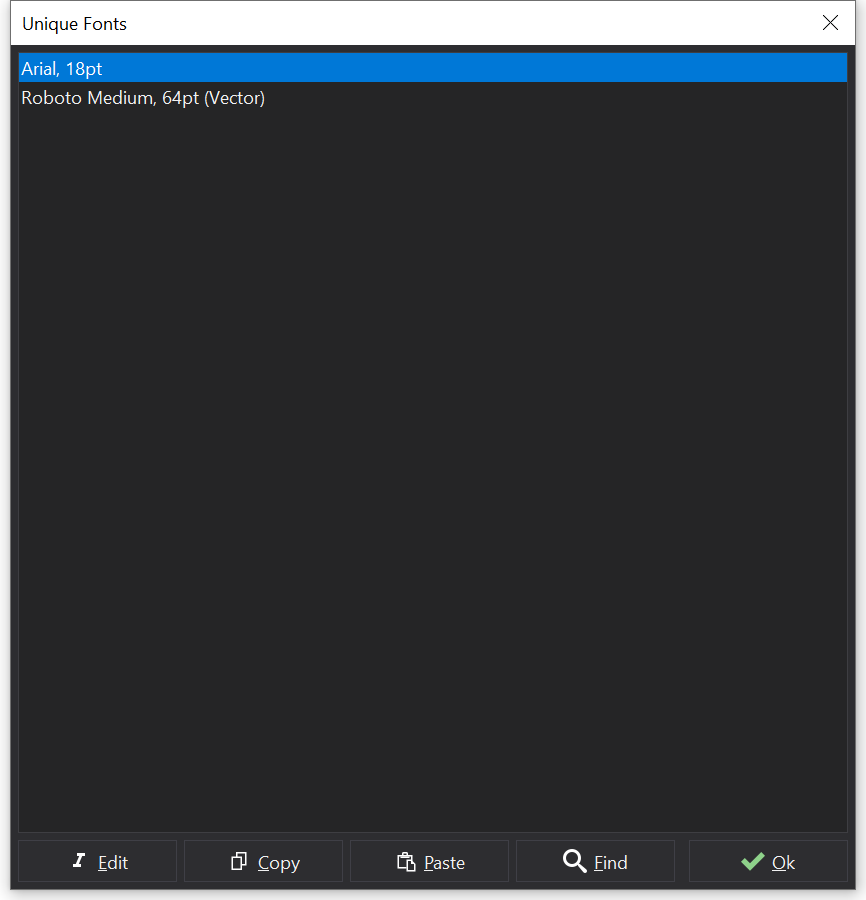
Unique Fonts Dialog
Font List
The Unique Fonts dialog presents a list of fonts that are used by gauges in the current setup. There may be more than one gauge using the same font.
Selecting a font in the list will enable the edit / copy / paste / find functions.
The font list indicates the size and style of the font.
Additionally the list will identify fonts that are ‘vector’ fonts - see Font Types .
Copy / Paste
Fonts may be  copied and
 pasted into another ‘font’. Pasting a font will replace all instances of the font being ‘pasted into’, resulting in the list of gauges for each font being combined to use the same font.
A font copied from the Unique Fonts dialog may also be pasted onto a gauge’s Font property using the properties context menu on the Design Tab .
Finding Gauges
The  Find button will search through screens for gauges that use the selected font and select the first usage in the Design Tab
.
A list of all gauges / screens that use the selected font may be displayed by selecting “List associated gauges” from the context menu (right-click). Double clicking on an item in the subsequent list will select the gauge in the Design Tab .
Deleting Associated Gauges
The gauges associated with the selected font may be deleted by selecting “Delete associated gauges” from the context menu (right-click). This action may be un-done using Ctrl + Z.
Editing a Font
Select a font and click the  Edit button.
The Font Editor will be displayed. If accepted then all gauges using the selected font shall be updated.