Images Tab
Overview
The Images Tab provides management of image assets used by page designs (see Design Tab ).
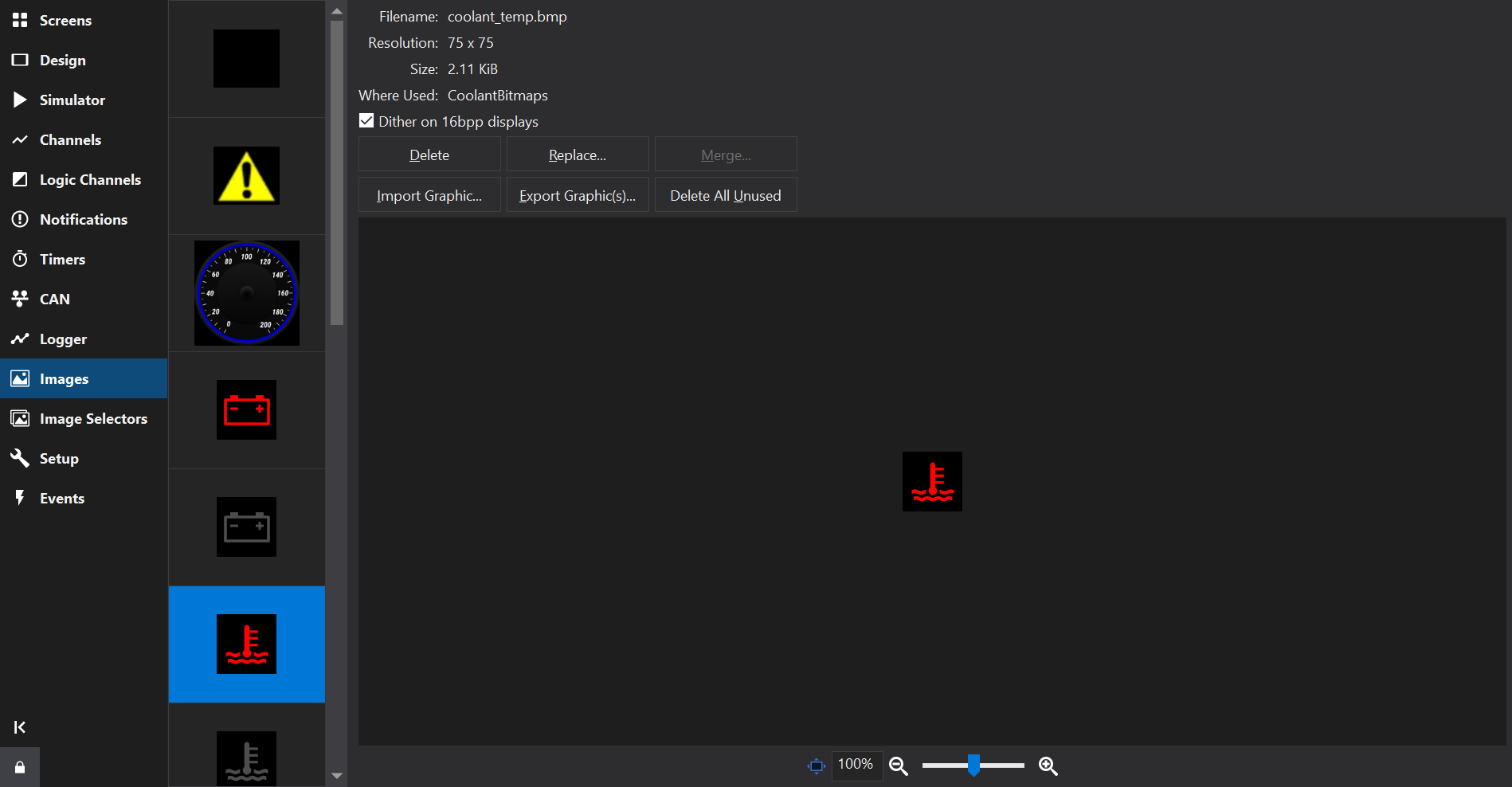
Image Properties
Selecting an image in the list on the left hand side will show the image full-size on the right, along with some additional information:
- Filename: The original path of the image
- Resolution: The size, in pixels of the image (Width x Height)
- Size: The size of the image stored in the setup. This can be useful if optimizing the size of display setups.
- Uncompressed: The size of the uncompressed image data, taking into account the colour depth of the display (e.g. 16 bits per pixel).
- Where Used: Shows which screens/pages and image selectors are using the image, or [unused].
- Dither on 16bpp displays: If checked, the image is dithered when it is converted for displays with 16 bits per pixel colour, which can reduce visible banding in gradients. When several images are selected, the box shows a mixed state if the images have different settings.
Image Functions
- Delete: Delete the selected image
- Replace: Re-load an image in-place of the selected image. This will update any references to the image on any screens/pages it is used by.
- Merge: If multiple images are selected then all references can be updated to use just one of them. From the popup, select which image should be kept.
- Import Graphic: Add a new image to the list of image assets. This is also possible via in-place gauge editing on the Design Tab .
- Export Graphic(s): Save the selected image to a separate file on disk. If multiple images are selected, choose a folder to export them all to.
- Delete All Unused: Deletes any images that are not referenced. This will reduce setup file size and lead to faster programming and improved performance on the display.