CAN Ports & Activity
Overview
opens the CAN Ports and Activity window, which is used to configure physical CAN interfaces on the PC, connect them to the simulator and monitor CAN traffic, without needing to start the simulator.
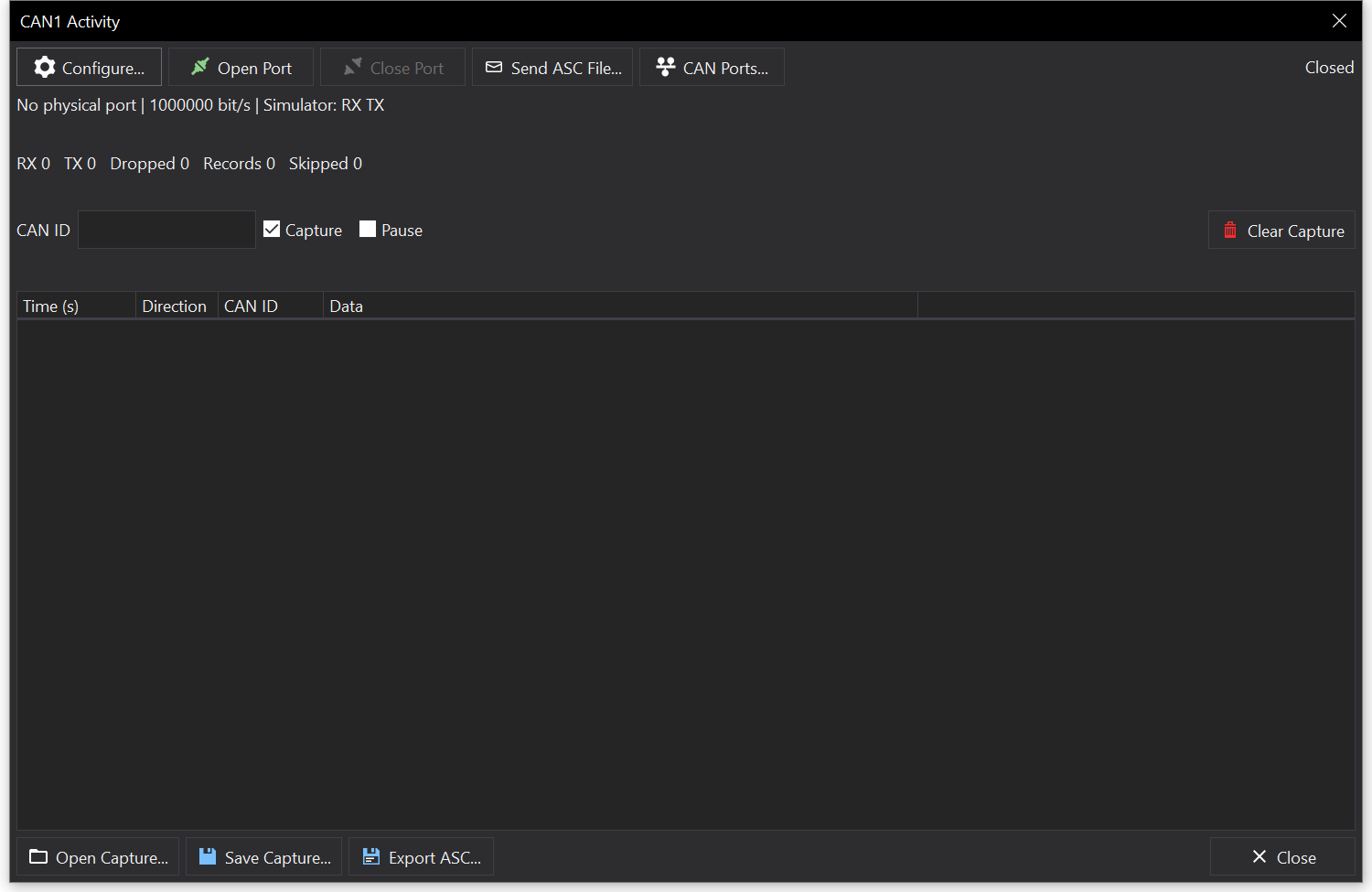
A port’s activity window may also be opened from the Configure | CAN Ports sub-menu, from the CAN Ports… button in the window, or from the Simulator Tab Options… dialog.
Configuring a Port
Click Configure… to open the port’s configuration:
| Setting | Description |
|---|---|
| Physical port | The PC’s CAN interface to use for this port. Select None to remove the physical port binding. Click Refresh to update the list of interfaces. |
| Bitrate (bit/s) | The CAN bit rate. |
| FD bitrate (bit/s) | The CAN-FD data bit rate. Use 0 for classic CAN. |
| Sample point (%) / FD sample point (%) | The bit timing sample points. |
| Receive in simulator | Passes CAN frames received by the interface to the simulator. |
| Transmit from simulator | Transmits CAN frames sent by the simulator on the interface. |
| Use setup bitrate during simulation | Uses the CAN port bit rate from the display setup while the simulator is running. |
| Open and close with simulator | Opens the port when the simulator starts and closes it when the simulator stops. Ports are not opened automatically when Dash Design starts. |
Click Apply to save the configuration. Applying the configuration does not open a closed port.
Opening and Closing a Port
Use Open Port and Close Port to open or close the physical interface. The current state is shown next to the buttons.
Monitoring CAN Activity
While a port is open, CAN frames are captured and listed with their Time (s), Direction (RX, TX, Error, Warning or Info), CAN ID and Data. CAN-FD frames are marked FD.
- CAN ID - filter the list to a single CAN ID, entered in hexadecimal (e.g.
123, or123xfor an extended ID). Leave empty to show all IDs. - Pause - freezes the displayed rows without stopping capture.
- Capture - uncheck to stop recording without closing the port or interrupting simulator traffic.
- Clear Capture - clears the captured records.
- Use the previous / next buttons to move between capture pages.
Saving and Exporting Captures
- Save Capture… - saves all captured records as a GCap file, regardless of the CAN ID filter.
- Open Capture… - opens a previously saved GCap file for viewing.
- Export ASC… - exports the CAN frames matching the CAN ID filter to an ASC file. Select the ASC channel number to write to the file, since GCap files do not store the original CAN port. Short CAN-FD frames and BRS/ESI flags cannot be recovered from GCap files.
Playing Back ASC Files
Click Send ASC File… to play back the CAN frames in an ASC file, either on the open port or to the running simulator. The Send ASC File window shows the current line of the file; use Pause, Loop and Restart to control playback.
If the port is not open and the simulator is not running, there is no playback destination; open the port or start the simulator first.