Signal Generator
The Signal Generator outputs arbitrary waveforms from you PC sound card, which can be used to simulate timing patterns etc. It can also output into a value in GWv4.
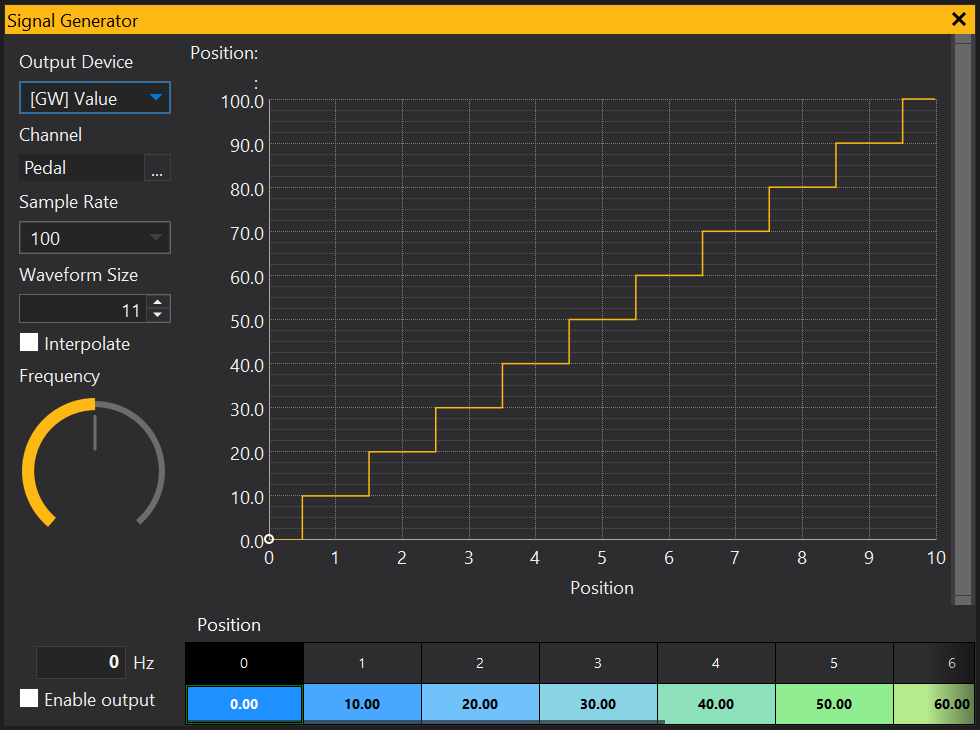
To open the Signal Generator View, go to . A window will appear like this (here with an example signal):
Setting up the Signal
Select an output device from the dropdown menu. Choosing ‘[GW] Value’ will output a signal into a channel in GWv4. The channel can be selected from the next dropdown menu. The signal rate is controlled in the Sample Rate box and the length of the waveform can be adjusted in the Waveform Size box. If the Interpolate checkbox is checked, the signal will be linearly interpolated between waveform points, otherwise no interpolation will be applied. To adjust the signal frequency, use the pot or enter a value in the Frequency box. To turn the signal on and off, use the Enable Output checkbox.
Creating and editing a Signal
The signal waveform can be created and edited using either the grid or graph. You can interact with these in the same way as Table Grids and Table Graphs, by clicking and dragging the waveform, or entering values into the table. See Table Grid and Table Graph topics for more information.
View Properties
Properties editable via the properties editor.
| Property | Script ID | Description |
|---|---|---|
| Title | title |
The title of the window. |
| Script ID | id |
The scripting ID of the window. Can be used as an alternative to the title for searching for windows from scripts. |
| Tool Tip | tooltip |
Window tool tip. |
| Script | script |
Edit the signal generator script. |