Log Map Controller
The Log Map Controller is used to configure aspects of Log Mapping and auto mapping. This view may be added from all the usual places - see Adding an Object, and is found under the following sub menu:
If you are trying to auto-map using a Lambda Log Map, you will typically want a negative feedback loop. To configure this, set the Multiplier value to a negative number (e.g. -1).
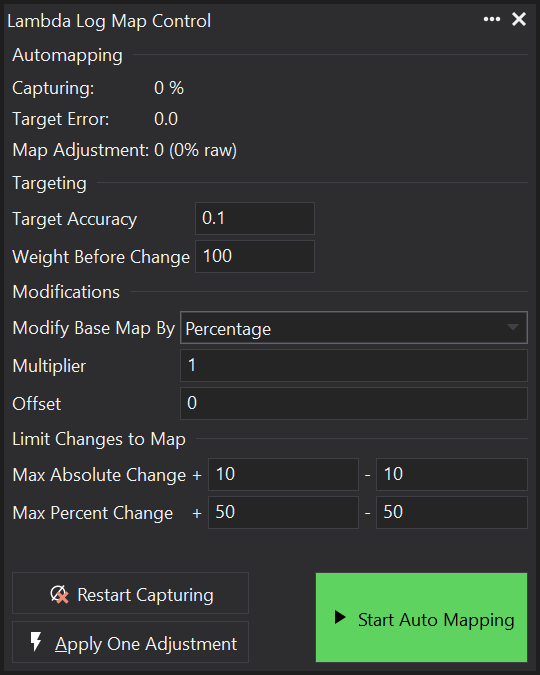
The Log Map Controller is divided into sections:
Auto mapping
This section gives the user some feedback about the internal state of the log-mapping algorithm and can be useful for discovering reasons why auto mapping might not be working appropriately.
-
Capturing is a percentage of the algorithm’s current logged weight compared to the weight before change. Once this reaches 100%, the algorithm will change the current cell’s value.
-
Target Error is the current difference between the base map and target map.
-
Map Adjustment shows the current expected change to the base map that the algorithm will make in real and percentage terms.
Targeting
Gives control over site filtering based on target accuracy and weight.
-
Target Accuracy - This value defines how different the logged channel value should be from the target map value before it is considered for auto mapping.
-
Weight Before Change - This defines the value that Confidence should reach before a site is considered for auto mapping. It has units of milliseconds.
Modifications
Gives control over how the Log Map modifies its base map when auto mapping.
-
Modify Base Map By - Defines how the logged channel difference is used to adjust the base map by when auto mapping. This can either be:
- Percentage: The channel difference value from the target map modifies the base map site value by a percentage of its current value. If using this mode, you can only perform auto mapping on non-zero base map cells.
- Additive: The channel difference is added to the current map site value.
-
Multiplier - The channel difference value is multiplied by this value. For a negative feedback loop (common with Lambda), use a negative value here.
-
Offset - This value is added to the channel difference after the multiplier has been applied.
Limit Changes to Map
Allows you to define the maximum amount that auto mapping may modify the base map by. The maximum change is defined for each direction, so subtractions from the base map value can have a different limit to additions.
These two changes are denoted by the ‘+’ and ‘-’ boxes. Max Absolute Change Is the maximum difference that can be applied to the base map as an offset from the original site value.
Max Percent Change Is the maximum percentage difference that may be applied to a map site. This is based on the original map value multiplied by the percentages given in the boxes.
Restart Capturing
Click this button to reset the weight of the currently selected cell(s). This can be useful if the system has not yet reached stability and you want to restart the weight calculations for the current site(s).
Apply One Adjustment
Clicking this button will calculate and adjust the a single selected site according to the current weight. The weight will then be reset to zero.
Start Auto Mapping
Once you are happy with the Log Map Controller settings, click the ‘Start Auto Mapping’ button. GWv4 will then begin to auto map the base map to the target map.
View Properties
Properties editable via the properties editor.
| Property | Script ID | Description |
|---|---|---|
| Object | object |
Enable the script (prevents script overriding direct object connection). |
| Enable Automapping | enable_automapping |
Turns on/off automapping. |
| Target accuracy | target_accuracy |
Sets the accuracy that the current position on the map must be before considering for auto-mapping. |
| Weight before change | weight_before_change |
Sets the weighting value that must be reached on a site before the value will be able to change. |
| Modification method | mod_method |
Sets the method used to modify the target map. |
| Modifier multiplier | mod_multiplier |
Sets the multiplier used to modify the target map. |
| Modifier offset | mod_offset |
Sets the offset used to modify the target map. |
| Max value change positive | max_value_change_positive |
Sets the maximum positive value change allowed. |
| Max value change negative | max_value_change_negative |
Sets the maximum negative value change allowed. |
| Max percent change positive | max_percent_change_positive |
Sets the maximum positive percent change allowed. |
| Max percent change negative | max_percent_change_negative |
Sets the maximum negative percent change allowed. |
| Object | object |
Name of the object displayed by this view. |
| Title | title |
The title of the window. |
| Script ID | id |
The scripting ID of the window. Can be used as an alternative to the title for searching for windows from scripts. |
| Tool Tip | tooltip |
Window tool tip. |
| Show Advanced Controls | show_advanced_controls |
Show advanced settings. |
| Show Target Controls | show_target_controls |
Show target settings. |
| Show Modification Controls | show_modification_controls |
Show modification settings. |
| Show Maximum Controls | show_maximum_controls |
Show maximum change settings. |
| Link Selection | link_selection |
Links the selection with views of the same object (e.g. links the selection on map grid and graph views). |
| Selected | selected |
Selected sites. |
| Small Increment | increment_small |
Sets the small increment / decrement value for keyboard control with '[' and ']' keys. |
| Large Increment | increment_large |
Sets the large increment / decrement value for keyboard control with Shift-'[' and Shift-']' keys. |
| Is Scaled Increment | increment_real |
If set to 'Yes', uses the small/large increment to increment the scaled (real) value rather than the raw integer value. |