Setup Tab
Overview
The Setup Tab provides configuration of various display functions:
- Setup Name
- LEDs
- LEDs (Rule Based)
- Speed / Odometer / Trip
- Lap Timing / GPS
- Page Select
- Brightness
- Monitored Channels
- Low Side Drivers
- Power
- General
- CDX Model
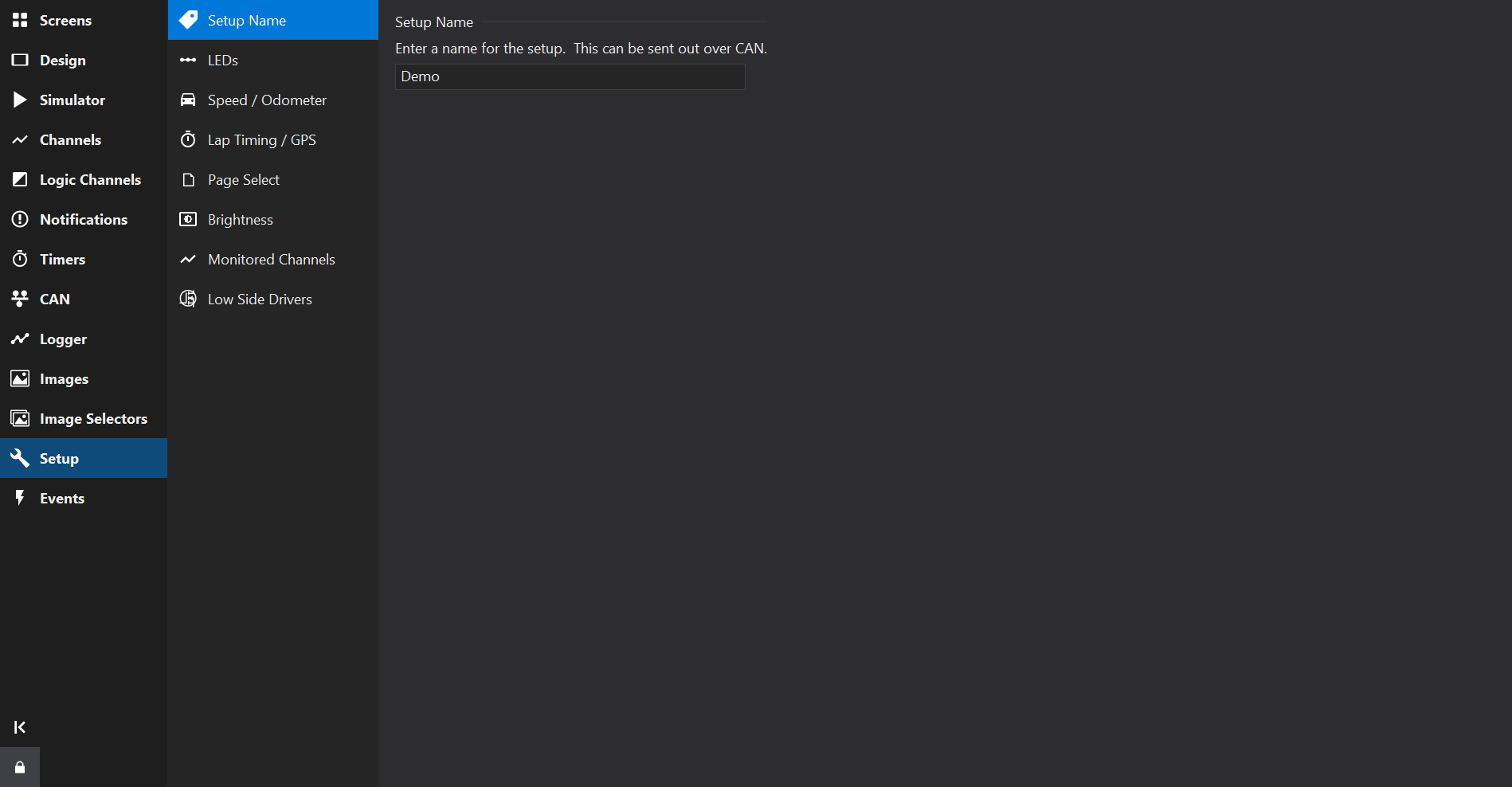
The Setup Tab provides configuration of various display functions:
The Setup Name allows a name for the setup file to be defined.
This name may be displayed in Gauges using the Setup Name special format, vz.
Additionally the setup name may be transmitted over CAN. See CAN Transmit .
LED setup varies between display types. Some displays only support rule-based configuration: LEDs (Rule Based) .
Other displays support a simpler channel-per-LED configuration.
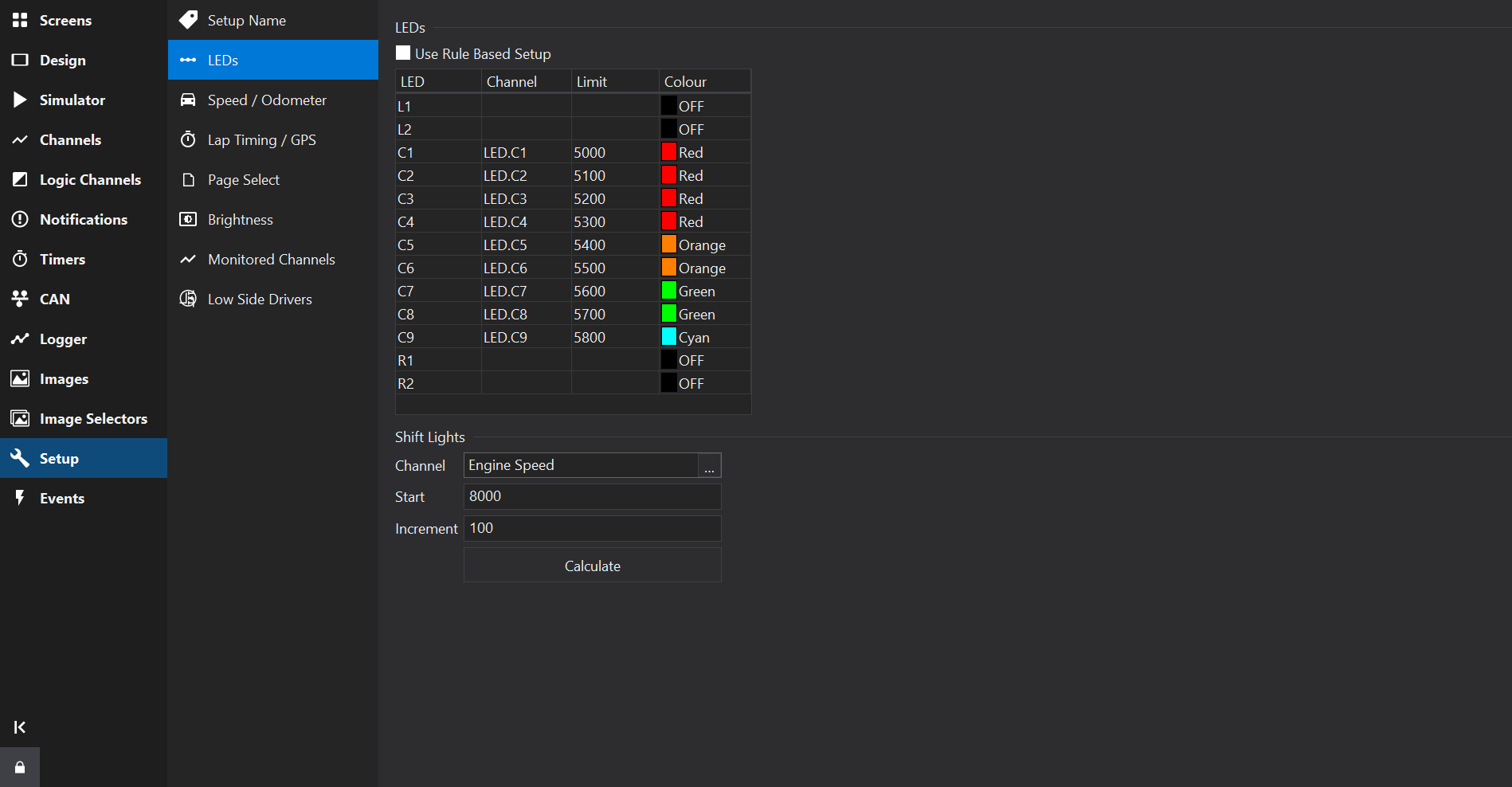
On displays that support LED brightness control:
If available for the current display type, checking the Use Rule Based Setup allows complex LED patterns and rules to be specified.
See LEDs (Rule Based) for more details.
The LED List displays a fixed list of the LEDs available on the display.
Channels may be used to drive the LED, optionally with a limit and a colour.
On displays with illuminated buttons or rotary switches (for example steering wheel displays), the button LEDs (e.g. BL1, BR1) and rotary switch backlights (e.g. RY1) are also listed and may be configured in the same way, including their colours.
For some displays, a flash channel may also be specified per LED (on/off). If activated, the LED will flash at the rate configured by Flash Rate [ms].
Channels may be used to select the colour of an LED. The colour selected by the channel value depends on the display type, but for current displays the following table is used:
| Value | Colour |
|---|---|
| 0 | Off |
| 1 | Red |
| 2 | Green |
| 3 | Blue |
| 4 | Orange |
| 5 | Magenta |
| 6 | Yellow |
| 7 | Cyan |
| 8 | White |
| 9 | Channel (Direct Drive) |
| 10 | Channel RGB111 (Direct Drive) |
The RGB111 colour space is a 3-bit colour space with 1 bit per colour channel (Red, Green, Blue), meaning that input channels have a different colour mapping and should be in the range 0-7.
Depending upon the display type, a shift light pattern may be generated.
To generate a typical shift light pattern, set a Channel, a Start value and an Increment value and then click the Calculate button to generate the pattern.
Rule based LED setups enable different LED configurations on different pages and complex LED patterns based upon a collection of rules.
Groups of rules may be defined that are active on a selection of pages.
Rules consist of an arbitrary list of conditions that each produce a pattern.
If multiple rules are active at the same time then they can be prioritised.
Active rules at the same priority level can be cycled through at an adjustable rate.
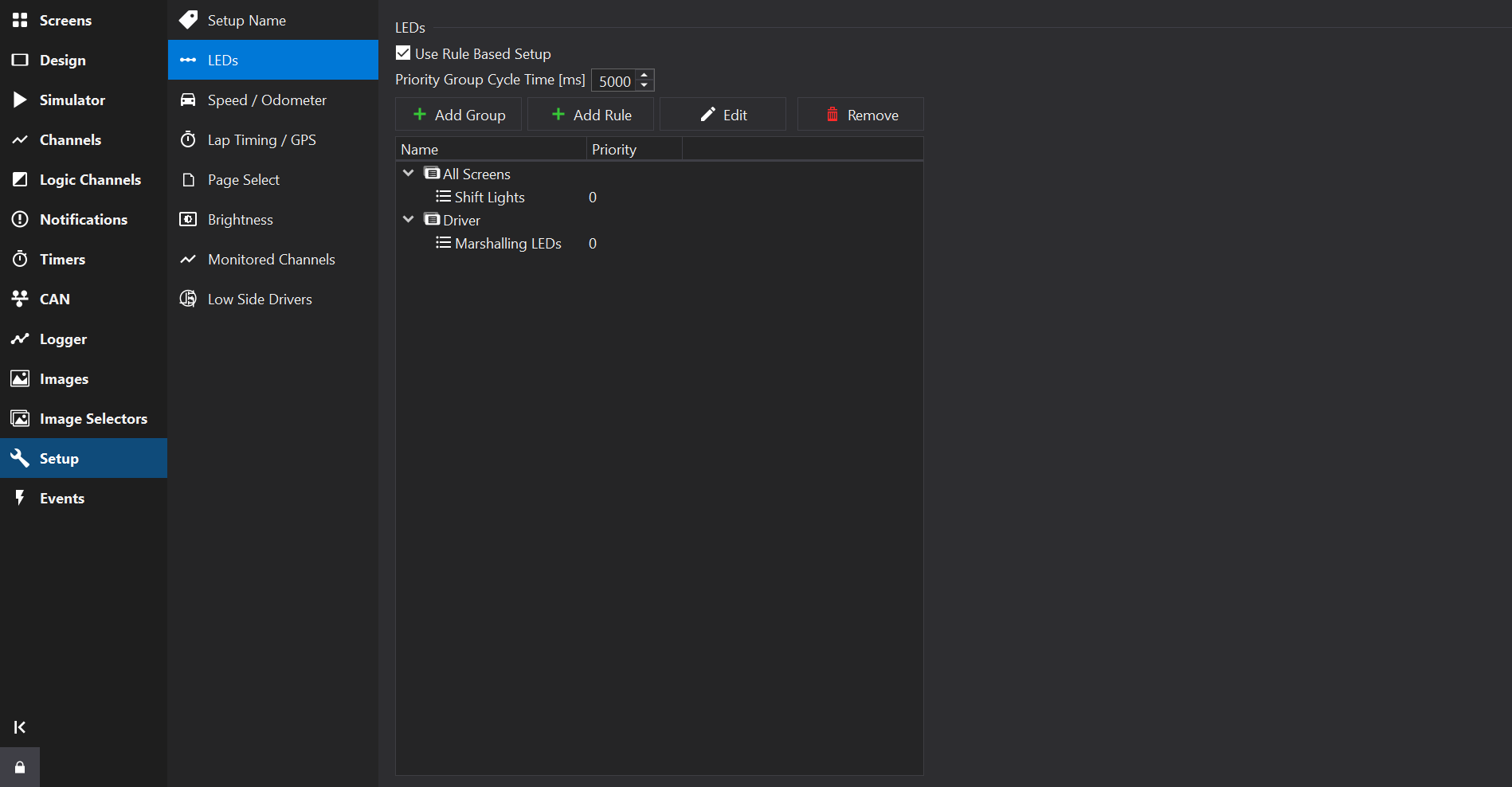
The main view shows a tree of groups and conditions; groups and rules are added and removed here.
Use the  Add Group to add a group.
Use the Add Rule to add a rule to the selected Group.
Use the  Delete button to remove selected groups / rules. The All Screens Group may not be deleted.
Use the  Edit button to edit the selected group or rule.
Rules and groups may be moved using drag & drop.
Use the context menu (right-click) to duplicate existing rules.
The Priority Group Cycle Time sets the time period at which multiple active rules of the same priority level are switched between.
Active rules at a lower priority level than another active rule may still have some effect if the active rule has not masked LEDs used in the lower priority rule. See LED Mask.
Rules within a group are only processed when the screen(s) it is assigned to are shown.
There is a default pre-defined group ‘All Screens’ which is active on every screen.
Named groups may be added and assigned to a selection of screens.
For example, you may add ‘Driver’ and ‘Diagnostic’ groups and only activate these on screens used by drivers or mechanics, respectively.
Use the Edit button to edit the selected group:
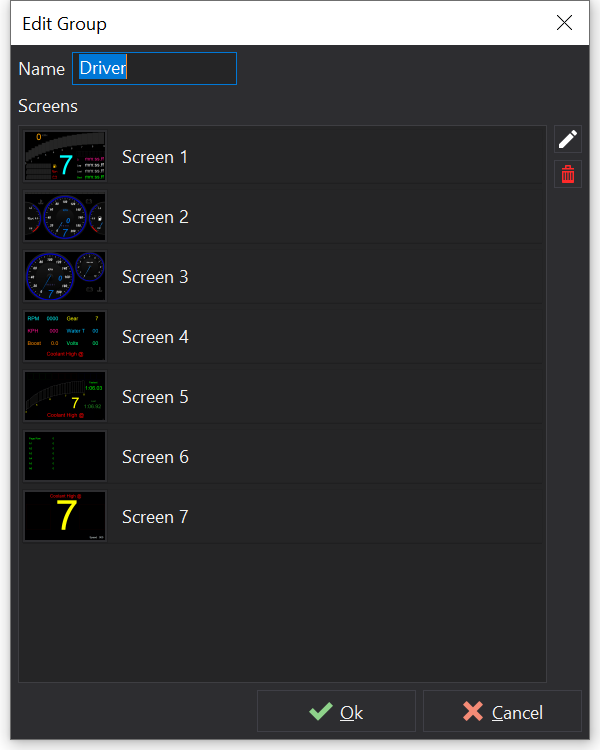
LED Group Editor
Sets the name of the group to express its intent or the set of screens it is associated with (e.g. “Driver” or “Diagnostic”).
A list of screens is presented for which the group will be enabled.
Screens may be selected using the Edit button on the LED Group Editor.
Rules may be added to Groups and can be given names to express their intent (e.g. Shift Lights / Critical Fault).
Use the Edit button to edit the selected rule:
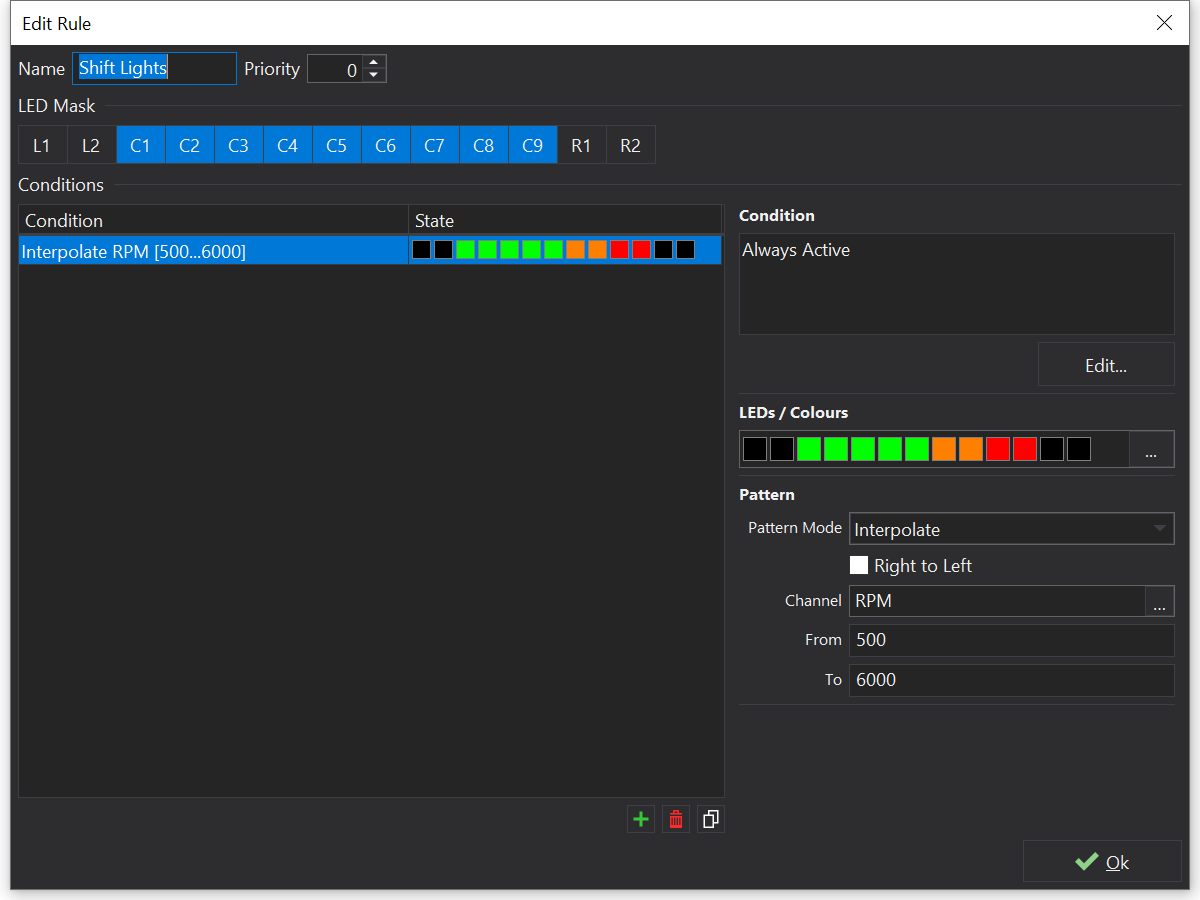
LED Rule Editor
Rules have an LED Mask. When a rule is active, the LED mask prevents any lower-priority rules from modifying the state of the LEDs that are set in the mask. In general it is best to set the mask to cover all the LEDs used by the various patterns in the rule. The mask may also cover unused LEDs that should not be lit by lower priority rules.
Higher priority numbers indicate a higher processing priority and are processed first by the display.
If multiple rules are active at a given priority level then the display will cycle through those rules at the rate specified by the Priority Group Cycle Time setting on the Main View.
Rules may contain multiple logical conditions that can each activate a different LED pattern (LED states). The conditions are processed in order, with subsequent conditions (if active) overwriting any LED states from the prior condition.
If any conditions are active within a rule, then the rule is considered ‘active’.
To the right of the conditions list are the condition properties.
If multiple conditions are selected then the properties will act upon all of them.
Conditions may specify up to 2 channel comparisons, linked by a logical operator. If no comparators are selected then the condition is always active.
If a logical operator is not specified then only ‘Comparator A’ (if any) is evaluated.
Defines an LED pattern to display when a condition is active.
Click the … button on the LED Pattern Picker to open the pattern editor:

LED Pattern Picker
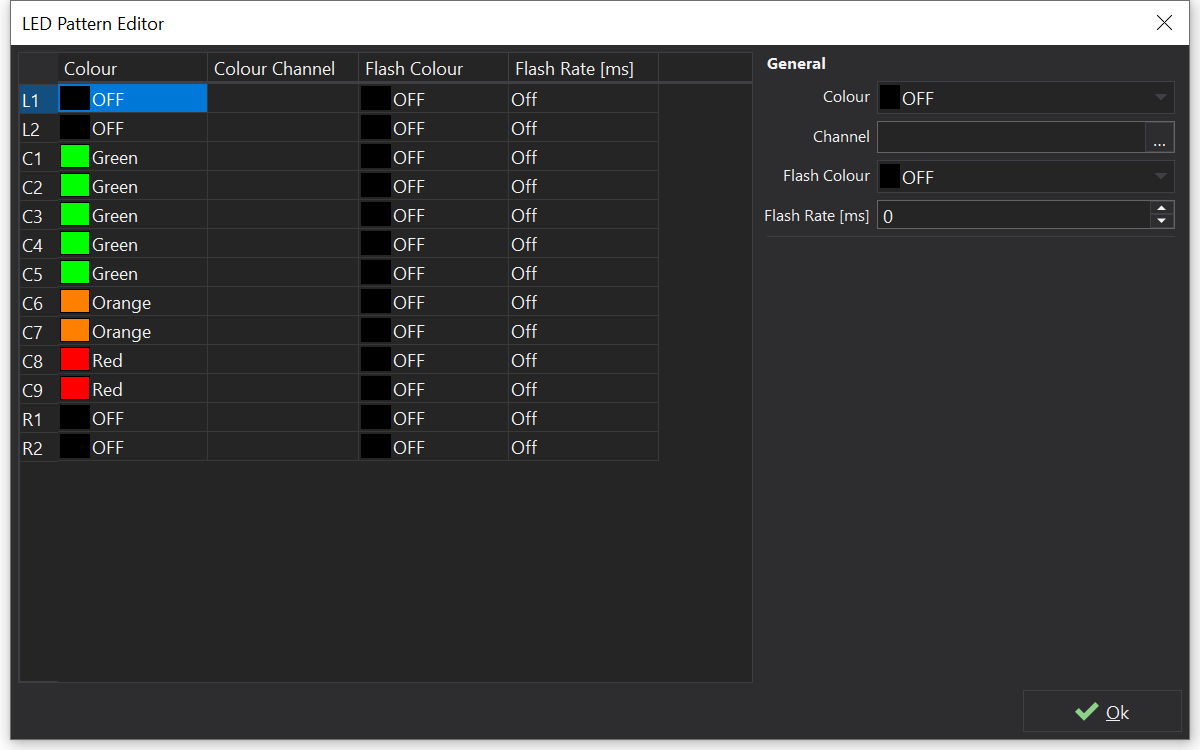
LED Pattern Editor
The LED Pattern Editor lists all LEDs available for configuration.
A fixed colour may be selected for each LED. Alternatively if a ‘Colour Channel’ is selected then the colour may be controlled by the channel value.
If a flash rate is configured then the LED will alternate between ‘Colour’ (or Channel based colour) and ‘Flash Colour’ at the given rate.
Selecting multiple LEDs allows their properties to be set collectively.
If the Pattern Mode property is set to Interpolate for a LED condition, then a channel may be selected to interpolate the state of LEDs in the selected pattern. This can be used to create shift light patterns without manually entering multiple conditions, which would otherwise be a time consuming process for a common use-case.
Interpolation only occurs over LEDs that are not configured in the pattern (i.e. have their colour set to ‘OFF’ and do not have a Colour Channel).
‘Right to Left’ will cause interpolated patterns to start from the right hand side as the starting point.
‘From’ and ‘To’ define the input channel value that signifies the beginning and ending of the interpolation range for the input channel. When the input channel is equal to the lower limit then no LEDs in the pattern will be shown. When the input channel reaches the ‘To’ value then all LEDs will be shown in the pattern.
‘From’ and ‘To’ may be reversed where To > From, in which case more LEDs will be shown as the input value decreases.
‘From Mode’ and ‘To Mode’ control how the ‘From’ and ‘To’ values are interpreted. The LED switching points (breakpoints) are spaced evenly between the adjusted ‘From’ and ‘To’ values:
| Mode | From Mode | To Mode |
|---|---|---|
| Inclusive | The first LED is shown when the input reaches ‘From’. | The last LED is shown when the input reaches ‘To’. |
| Exclusive | The first LED is shown when the input exceeds ‘From’. | LEDs are shown when the input exceeds their breakpoint, so the last LED is shown when the input exceeds ‘To’. |
| Inset | The first breakpoint is moved inside the range by one LED step, so no LEDs are shown when the input equals ‘From’. | The last breakpoint is moved inside the range by one LED step. |
| Inset (half) | The first breakpoint is moved inside the range by half an LED step. | The last breakpoint is moved inside the range by half an LED step. |
An LED step is the interpolation range divided by the number of LEDs. The defaults (From Mode = Inset, To Mode = Inclusive) give the behaviour described above.
Setups that use non-default range modes require Dash Design 2.4.1 or later.
Interpolation may be used in conjunction with conditions.
If the Pattern Mode property is set to Bit Pattern for a LED condition, then a channel may be selected who’s individual bits correspond to LEDs.
Each bit in the input channel will correspond to LEDs that have been assigned a colour in the LEDs property. The first LED with a colour (i.e. not set to OFF) will be bit 0 and the next enabled LED will be bit 1 etc.
‘Right to Left’ will cause bit patterns to start from the right hand side; thr right-most LED that has a colour defined will correspond to (bit 0) in the input channel.
Dash Design will create hidden Bitmask Channel s to drive each LED individually.
The input channel will be converted to an integer representation prior to masking; the display uses 64bit floating point for channel values internally, giving exact conversions for up to 52 bits.
Channels may be used to select the colour of an LED. The colour selected by the channel value depends on the display type, but for current displays the following table is used:
| Value | Colour |
|---|---|
| 0 | Off |
| 1 | Red |
| 2 | Green |
| 3 | Blue |
| 4 | Orange |
| 5 | Magenta |
| 6 | Yellow |
| 7 | Cyan |
| 8 | White |
| 9 | Channel (Direct Drive) |
| 10 | Channel RGB111 (Direct Drive) |
The RGB111 colour space is a 3-bit colour space with 1 bit per colour channel (Red, Green, Blue), meaning that input channels have a different colour mapping and should be in the range 0-7.
The Speed / Odometer Tab provides configuration of a common Speed Input channel and the built-in Odometer function, along with trip setup features.
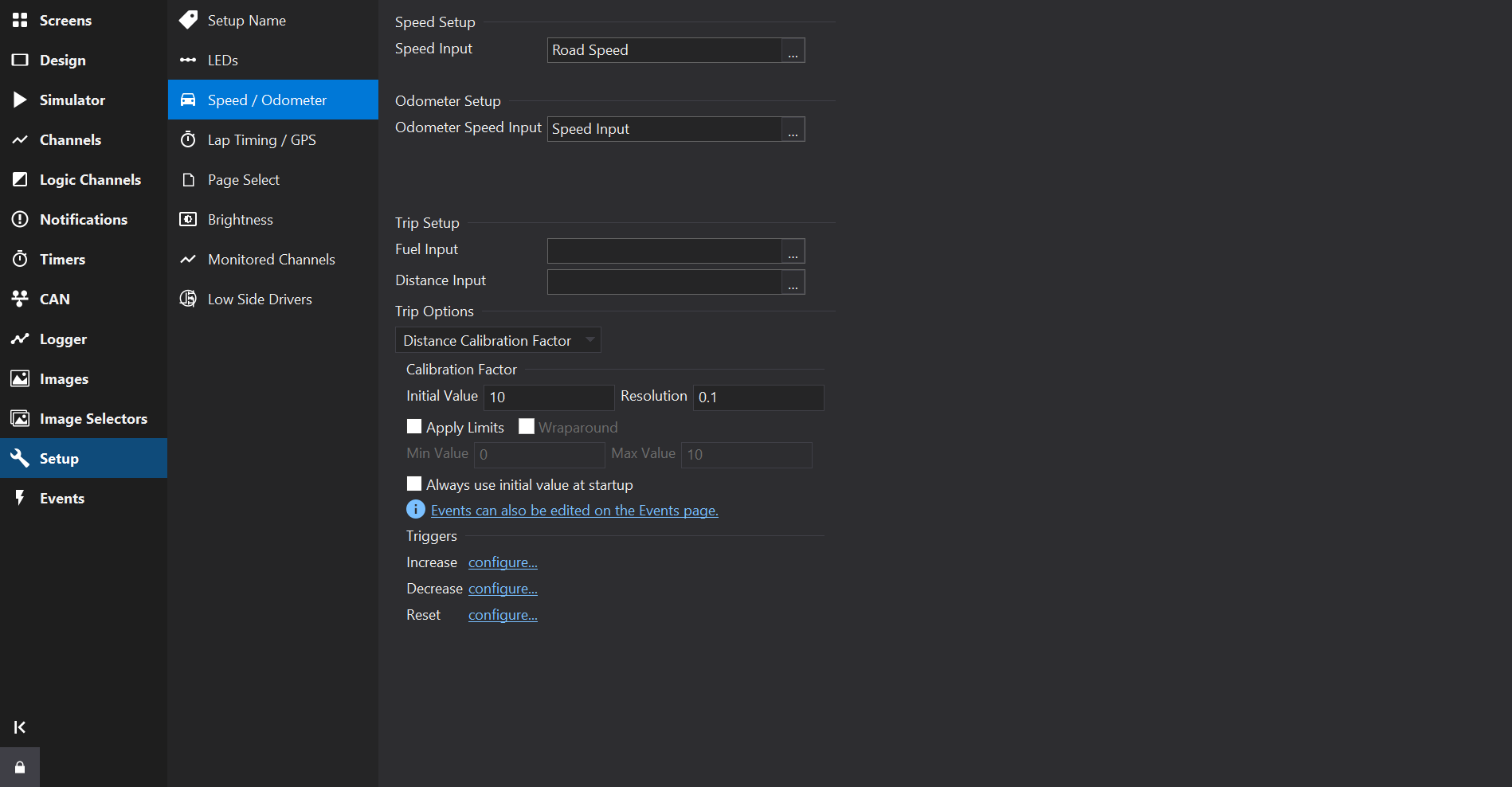
Select an input for the Speed Input channel. The Speed Input channel will output the same units of its input channel.
The vehicle speed is typically used in a number of places in display setups and Speed Input offers a single place to define the speed channel.
The channel being input to Speed Input is required to specify a speed unit so that correct physical unit conversions can be applied where needed.
If there is a misconfiguration here then the Setup Checker will issue a warning.
e.g.
 Error: Speed Input source ‘Road Speed’ does not have units of speed.
The Odometer is an internal counter backed up to non-volatile memory that cannot be reset. It is set to zero when the unit is built.
Select an output that is road speed and has units of speed. Typically the predefined “Speed Input” channel will be used here and will be set by default.
The software will arrange to convert units to [km/s] for correct functioning of the odometer.
A predefined Odometer channel will be available which is scaled in km and can be displayed on the screen.
Predefined trip related settings may be configured here.
Fuel Input defines the input used to calculate total fuel, trip fuel and fuel used. The fuel input can either be a Fuel Level input (which decrements as fuel is used) or a Fuel Used input (which increments as the fuel is used).
Distance Input defines the input used to calculate trip distance and countdown distance. This should be in either km or miles.
Select a trip counter to configure from the drop-down box. The trip counters are all configured to use the common Fuel Input and Distance Input channels, where appropriate.
Distance Calibration Factor defines the initial value of the distance calibration factor. All ‘co-driver’ distances are multiplied by the calibration before being displayed.
See also Calibration Factor Channel .
Countdown Distance Trip defines the initial and reset values of the countdown trip. See also Distance Countdown Channel .
Resolution defines the display resolution of these trip meters. See also Distance Trip Channel .
Configure the fuel trip meters as-per Fuel Channel
Specify the initial (and reset) values for the countdown timer.
Also specify the amount the timer is incremented and decremented by during increment/ decrement events by setting the Delta value in seconds.
The events for controlling the Countdown Timer may be specified here.
See also Timers Tab .
The Lap Timing / GPS Tab provides configuration of lap timing.
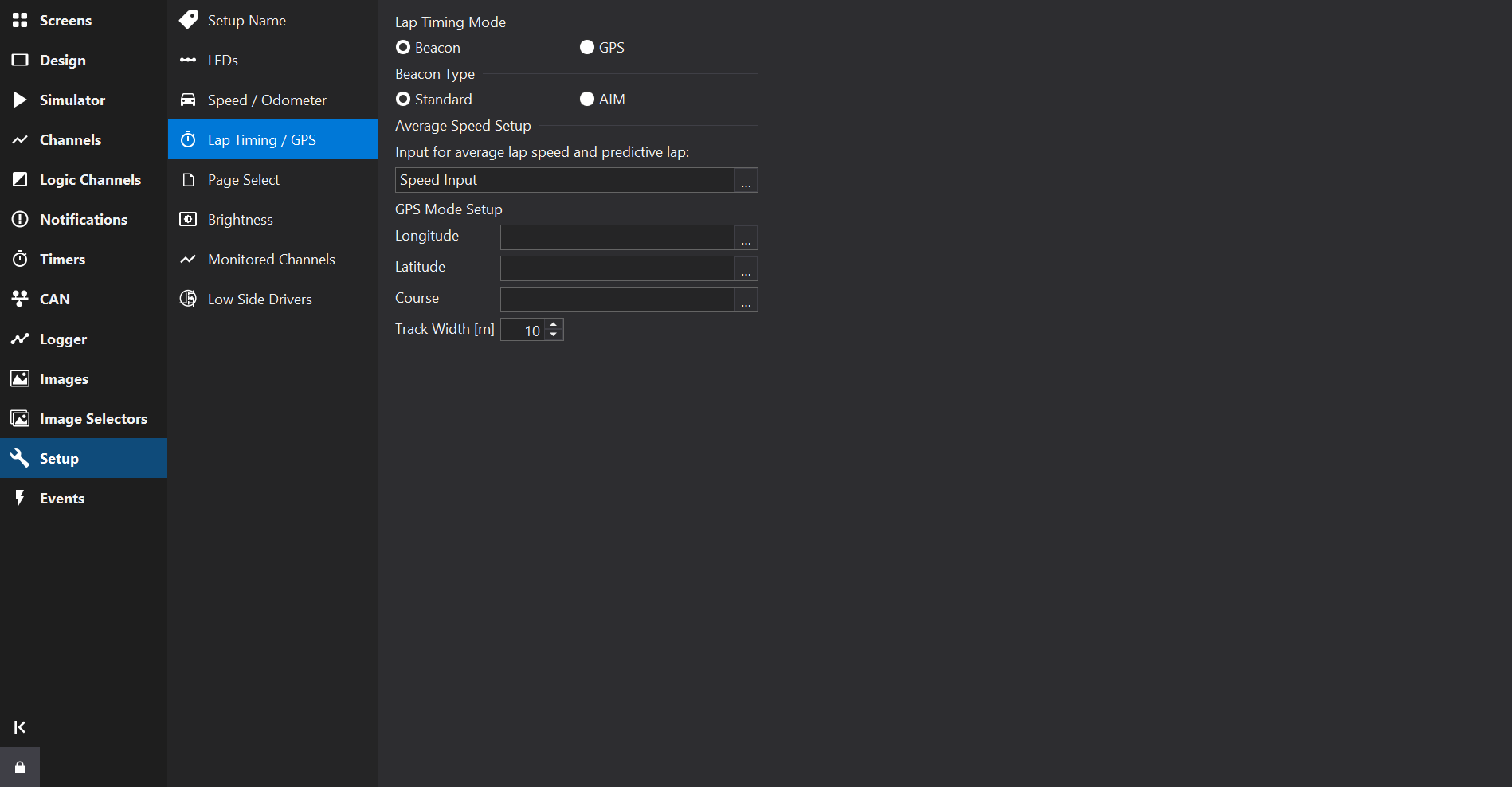
Several pre-defined channels are automatically created if the Display Module supports lap timing. See Lap Timing Channels .
In this mode, the beacon input is connected to a lap timing beacon receiver.
The lap timing outputs are updated as appropriate every time the beacon input is driven low.
If using an AIM beacon receiver, select AIM under Beacon Type.
AIM beacons have a slightly different output to other beacons; 3 pulses within 10ms must be received by the Display Module to register a beacon event.
Set Beacon Timeout [s] to the minimum time between accepted lap triggers. Triggers received within this interval after an accepted trigger are ignored, preventing repeated lap triggers from the same beacon.
The timeout applies to Standard and AIM beacons and GPS lap timing. It defaults to 15 seconds and can be entered to millisecond precision. Set it to zero for no additional timeout between triggers.
This setting is currently available only for GLW-43 displays with firmware 15x39 or later. Older firmware retains its fixed timeout.
Select a vehicle speed here. This will be set to the predefined Speed Input channel by default. Speed Input offers a single place to identify the speed channel and may be configured on the Speed / Odometer / Trip Setup page.
Use Speed Input here and set a common speed channel on the Speed / Odometer / Trip Setup page.
In this mode, a button (to ground) is connected to the beacon input.
Pressing the button (i.e. grounding the beacon input) for at least 500ms sets the location of the GPS Start/Finish line at the point the button was initially pressed, provided valid GPS data is being received by the display.
When the finish line is crossed again with the GPS Course within 90 degrees of the start finish line, a new lap is triggered.
For GPS mode to work, the outputs for GPS Longitude, GPS Latitude and GPS Course (all in degrees) must be specified together with the width of the track in metres. This should normally be a couple of metres wider than the actual track.
If using the serial input for GPS, these entries will be automatically populated.
The GPS Start/Finish position is stored between sessions and only changed when setting a new start/finish line.
Uploading a setup or uploading new firmware will reset the start/finish line.
If a speed input is specified, the average lap speed and predictive lap timing outputs will function.
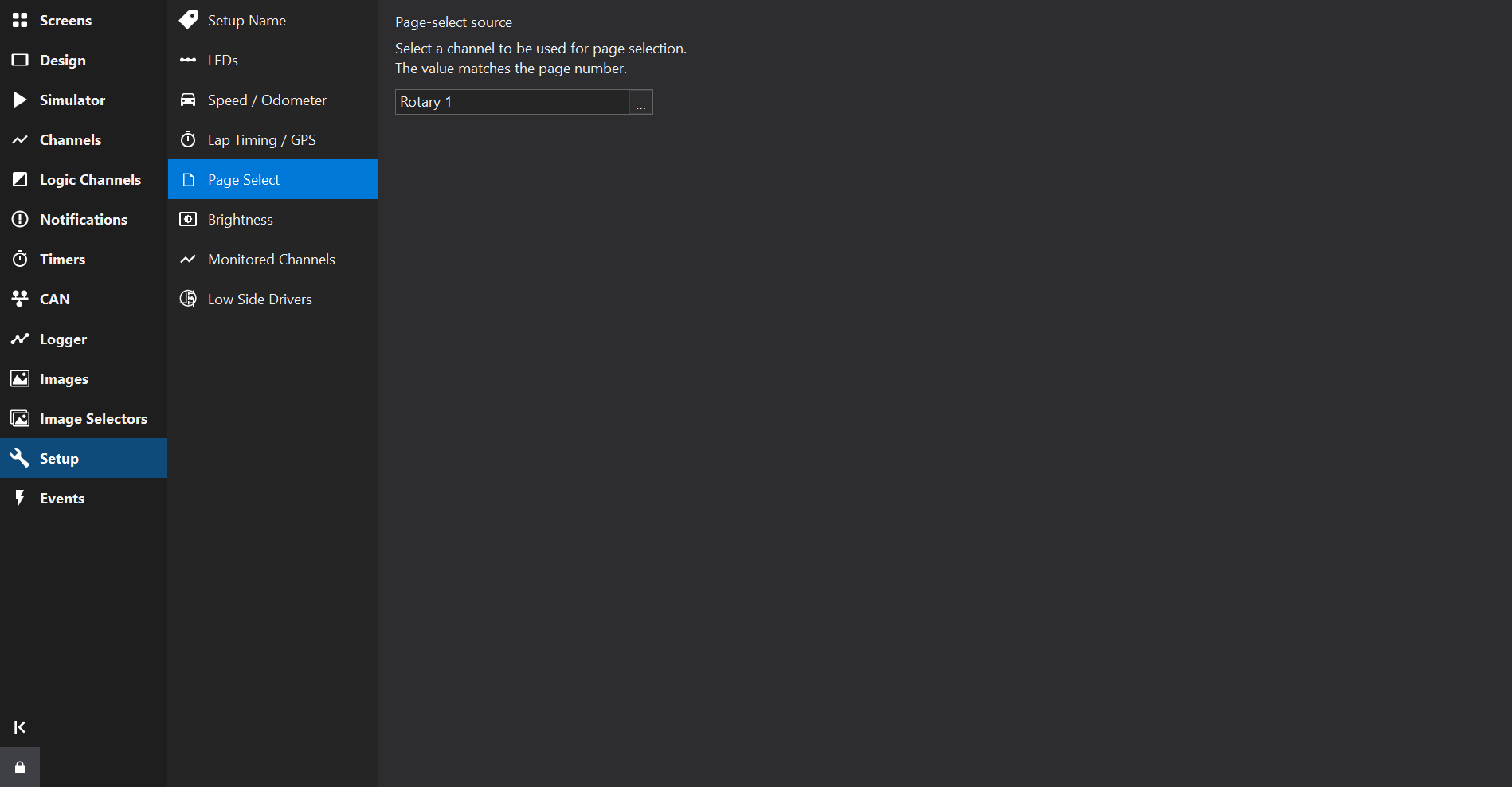
The Page Select Tab allows a channel to be selected to change the current screen (page).
Pages are numbered starting at 1 for the first page.
When numbering options are shown beneath the page-select channel, select the input numbering:
Select a channel before choosing its numbering. Changing the numbering does not change the channel’s scaling or other uses of that channel. Dash Design adds a hidden conversion for page selection when the chosen numbering differs from the display’s native numbering. No firmware update is required.
The selected numbering is preserved when saving or exporting XML.
LDS4 firmware variants use different numbering conventions. Check whether the installed firmware requires 0 or 1 to select page 1; Dash Design does not infer the firmware variant from an LDS4 setup. A warning is shown when converting setups to or from LDS4 so that the page-selection values can be checked.
The Brightness Tab allows selection of a channel for controlling the screen brightness.
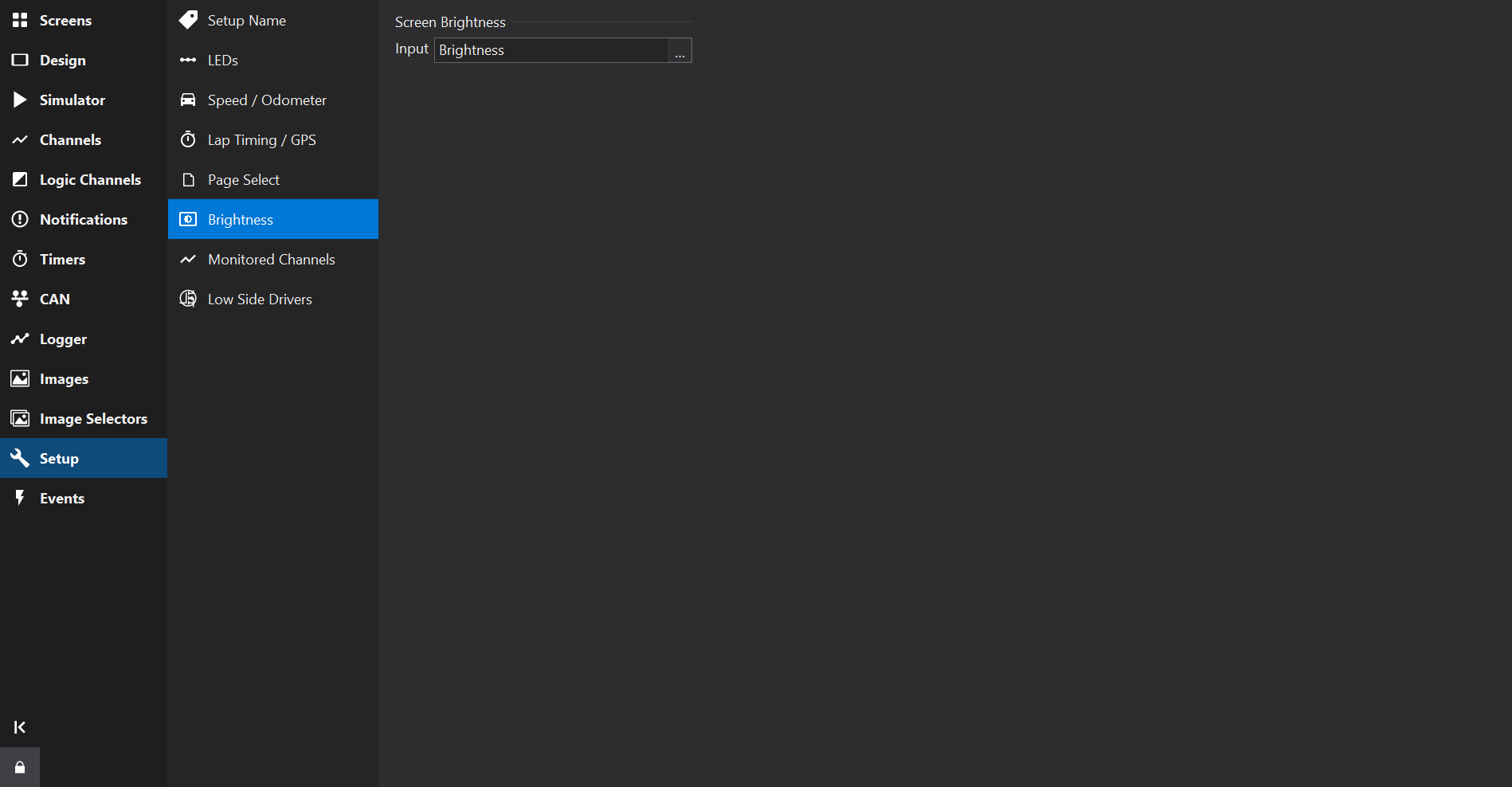
The value of the brightness input channel sets the screen brightness. The channel could be connected to one of the analogue inputs, for example to use a rotary pot to control the brightness, or it could be controlled from an ECU via the CAN bus.
For most displays, the input is a percentage from 0 to 100 %. Values outside this range are limited to it.
LDS4 displays use the coarse or fine ranges described below instead of a percentage.
The coarse control has eight brightness levels which can be selected by configuring a channel to produce a value in the range 0…7, with 7 being brightest. This mode is adequate for single seater/ steering wheel use where the display will be used in daylight conditions.
The fine control has 63 brightness levels which can be selected by configuring a channel to produce a value in the range 129…191 with 129 being the darkest, 191 the brightest and 160 the default brightness value.
On AMOLED LDS4 displays, coarse levels 6 and 7 (and the top of the fine range) are over-driven for extra brightness, but this results in a loss of image contrast. On LDS4 displays with an LED backlight, coarse level 5 and fine level 160 are already full brightness, so higher values make no difference, and coarse level 0 or fine level 129 switches the backlight off.
If a fixed brightness is required, create a maths output whose equation is the brightness value required and use this as the brightness input.
The Monitored Channels lists channels that should be processed even when not being used by any gauges on the current page.
Some special channels such as Calibration Factor Channel can be added to the monitor channels list to ensure that it is persisted during power-off of the display.
Normally a given output is only monitored if used by a gauge on the currently displayed screen. In certain circumstances however, it is necessary to monitor some outputs irrespective of whether or not they are used by the currently displayed screen page.
For example, if the maximum coolant temperature is used only by gauges (or derived outputs), switching screens deletes the output as the screen changes and recreates it if necessary. The maximum output is then be reset and its’ information is lost. By adding this output to the Monitored Channels it is created when the display module is switched on. Changing screens has no effect on the output and the data is not reset unless a reset signal is received.
Furthermore, outputs added to the Monitored Channels are automatically stored in non-volatile memory. The values of a min, max or average output added to the Monitored Channels are preserved even when the screen is powered off. Consequently, it is important to make sure a reset method is set for such channels added to the Monitored Channels.
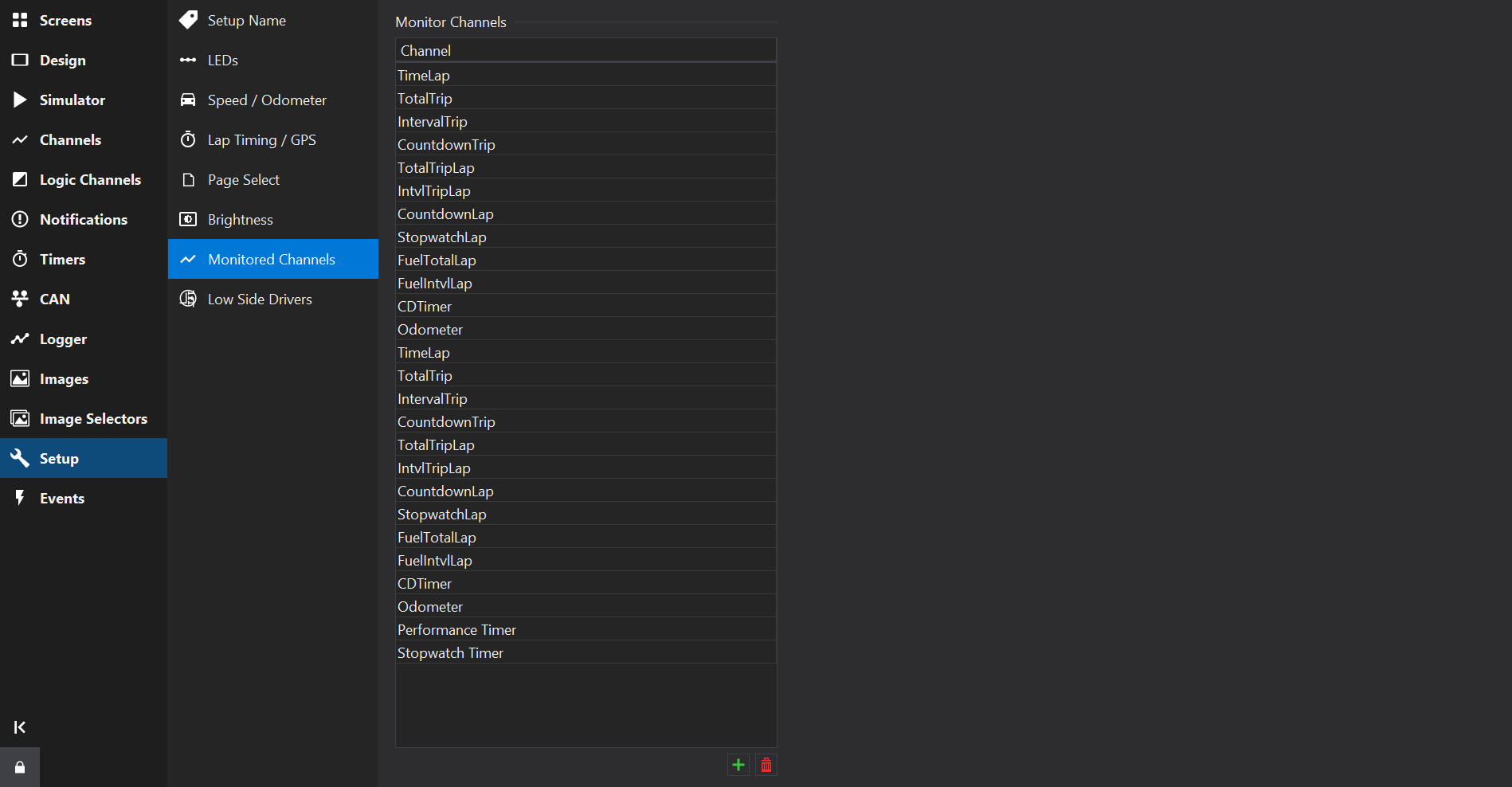
Use the and buttons to the bottom right of the channel list to add or remove. Predefined channels may not be removed.
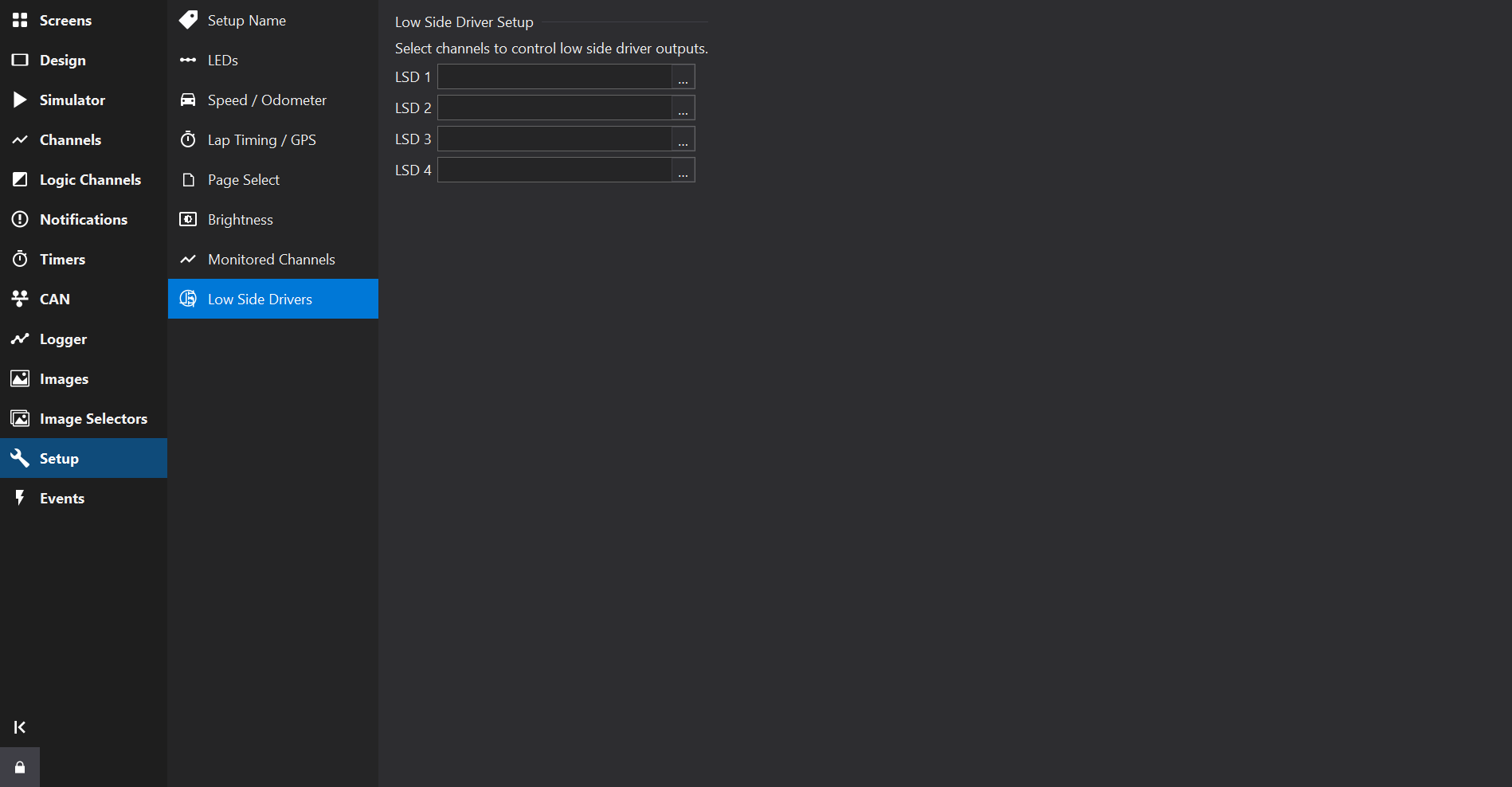
The Low Side Drivers Tab allows configuration of electrical outputs from the display module.
Low side drivers (switched to ground) can be used to drive relays or other items that are connected to a positive supply.
Select a channel to drive each low side driver available on the display - when the channel value is greater than zero, the output will be on.
The display name of each low side driver may be edited to describe its purpose.
Depending upon the display type and firmware version, additional properties may be available for each output.
On displays with PWM-capable outputs (for example CD6), each output has the following properties:
| Property | Description |
|---|---|
| Input | The channel that controls the output. |
| Output Mode | On/Off: the output is switched on when the input is non-zero. Variable Frequency / Fixed Duty: the input channel controls the PWM frequency. Variable Duty / Fixed Frequency: the input channel controls the PWM duty. Variable Duty and Frequency: both the duty and frequency are variable. |
| Frequency | The fixed or initial PWM frequency. |
| Frequency Input | For variable frequency modes, the channel that controls the PWM frequency. |
| Duty | The fixed or initial PWM duty (0-100%). For variable duty modes, the input channel controls the duty. |
| Invert Output | If enabled, an input value of 1 drives the output OFF. |
Some outputs share a frequency timebase (for example on CD6, LSD 1 & LSD 2 share one timebase and LSD 3 & LSD 4 share another). If either output of a pair uses a variable frequency mode, the frequency settings apply to both outputs of the pair.
On displays that support frequency output mode (for example GLW-43, LFRW-43 and LDS4), an output may be driven from a frequency source:
| Property | Description |
|---|---|
| Frequency Clock | Enable to use frequency output mode, or Disabled for a normal on/off output. |
| Frequency Input | The channel that sets the output frequency, when Frequency Clock is enabled. |
For applicable displays, the Power setup page provides 5V Sensor Supply controls (requires firmware 02x00 or later).
These settings support undo/redo and are saved with the setup, including XML exports.
For applicable displays (for example CD6), the General page provides display-wide rendering settings.
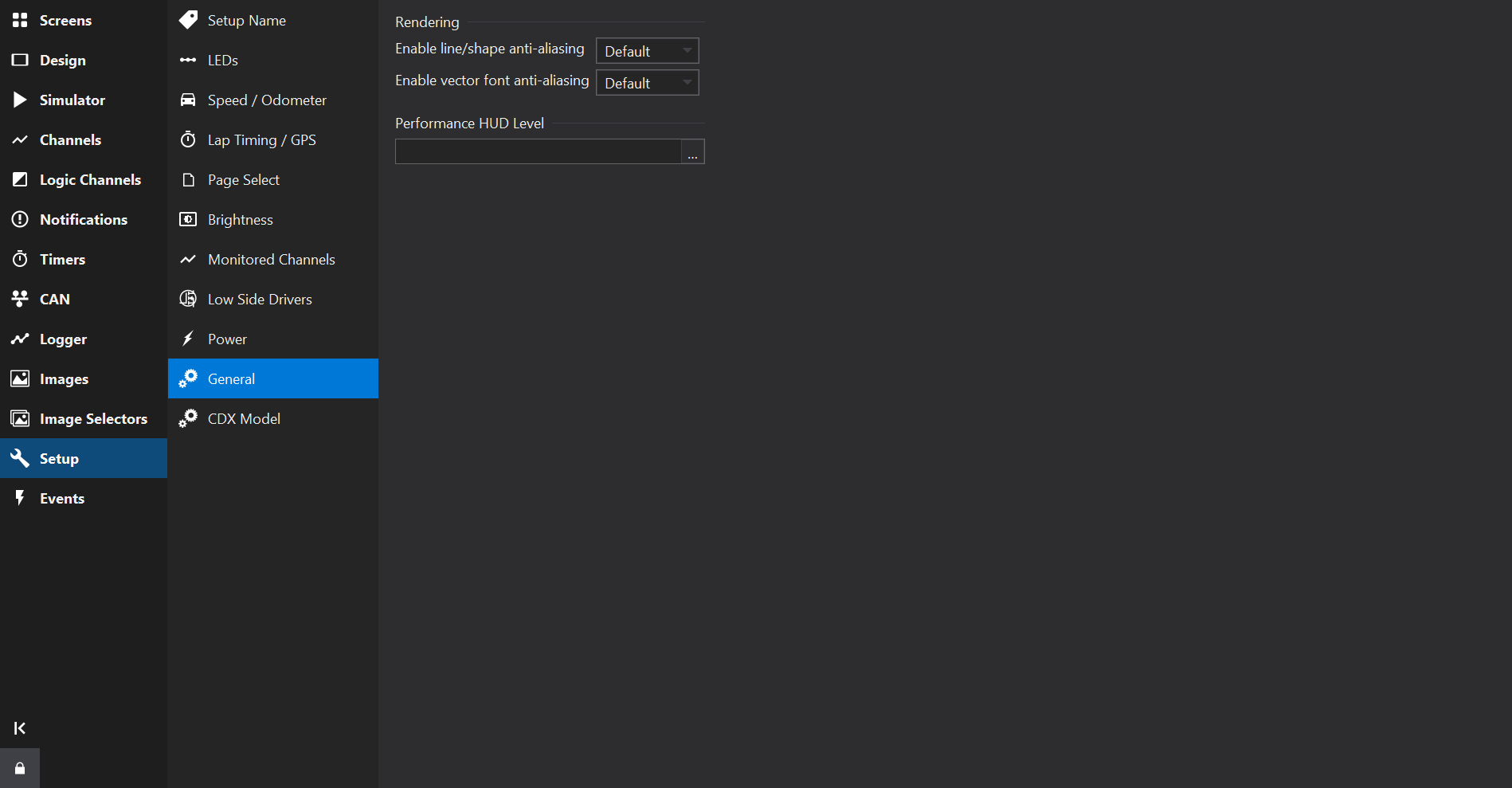
| Setting | Description |
|---|---|
| Enable line/shape anti-aliasing | Enables anti-aliasing (smoothing) of lines and shapes. This is the default for the Enable AA property of screens and gauges; see Standard Gauge Properties . |
| Enable vector font anti-aliasing | Enables anti-aliasing of vector fonts. Does not apply to bitmap fonts; see Font Types . |
Each setting may be set to Yes, No or Default. Default removes the setting from the setup so that the display’s own default is used; this avoids warnings when the setup is used with older firmware versions that do not support the setting.
Anti-aliasing may affect performance on some displays.
Select a channel to control the performance heads-up display, which shows rendering performance information on the display:
Some dash displays such as the GEMS CD6 Dash Display Module support the running of user-defined Simulink® models or compiled user applications on a separate processing core.
Applications are built using the GEMS CDX Model Runtime. Contact GEMS for more information. See also the GEMS CD6 Dash Display Documentation.
CDX models communicate with the display over model IPC (inter-process communication) CAN signals on a virtual CAN port.
The CDX Model page of the Setup Tab shows the model loaded into the setup and provides commands to load, reload, remove and program it. The same commands are available from the Tools menu.
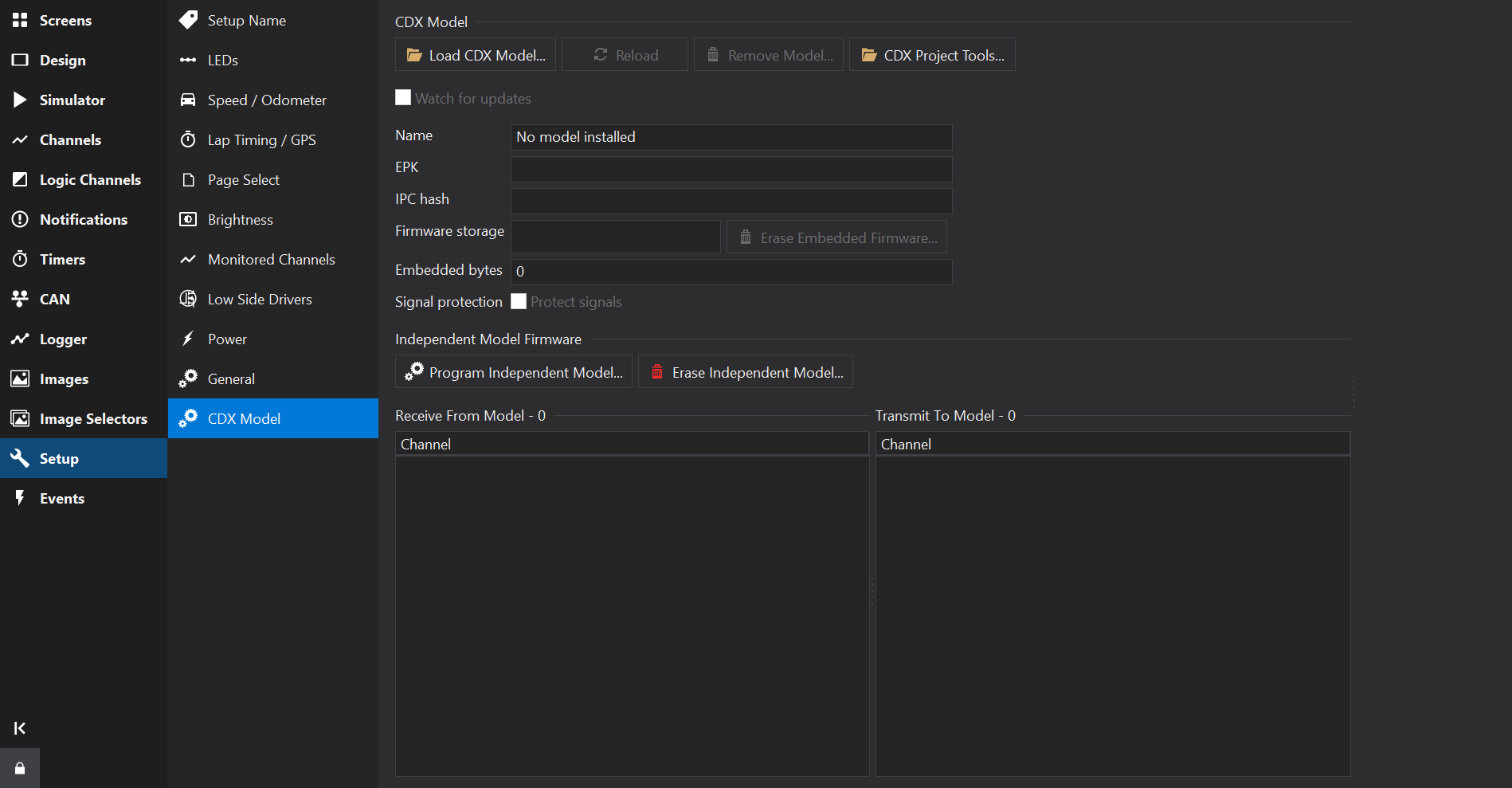
CDX Models are supplied as CDX Model packages (*.cdxmodel files), which contain the model identity, firmware and IPC signal definitions.
Click Load CDX Model… (or use ) and select a CDX Model package, or drag the package onto the Dash Design window. Loading a model replaces the current model and model IPC signals in the setup.
The Load CDX Model dialog shows the model name and firmware size, and offers a choice of firmware storage:
Check Program to a display after loading to program the model firmware once it has been loaded.
| Field | Description |
|---|---|
| Name | The name of the loaded model. |
| EPK | The model’s EPK identifier. |
| IPC hash | The hash identifying the model’s IPC signal definitions. |
| Firmware storage | Whether the firmware is Embedded in the setup or Independent on the display. |
| Embedded bytes | The size of the embedded model firmware. |
| Signal protection | When Protect signals is checked, the model IPC CAN definitions are hidden and protected from editing. Protection is locked when a protected setup is reopened; importing a replacement model unlocks it. |
The Receive From Model and Transmit To Model lists show the channels that the display receives from, and transmits to, the model.
| Command | Description |
|---|---|
| Load CDX Model… | Loads a CDX Model package, replacing the model identity, firmware and IPC signals. |
| Reload | Reloads the model from its original package file, retaining the firmware storage and signal protection settings. Also available as . |
| Remove Model… | Removes the model identity, firmware and all model IPC signals from the setup. This can be undone. Also available as . |
| Erase Embedded Firmware… | Erases the embedded firmware while retaining the model identity and IPC signals. |
| CDX Project Tools… | Opens the CDX Project Tools. Also available as . |
If the CDX Model package file changes on disk, a notification is shown with a Reload button to update the model and IPC signals in the setup. If the package cannot be watched or checked for changes, a warning notification identifies the file and explains how to restore access; it does not interrupt editing with a dialog.
The Watch for updates checkbox controls automatic change tracking. Both notifications include Stop tracking changes, which clears this checkbox without removing the model or its original package filename. Manual Reload remains available and does not restart tracking. Check Watch for updates to restart tracking; loading a model again or reopening the setup also enables tracking again. If tracking cannot start, the checkbox remains unchecked and the warning explains how to restore access. Closing a notification without using Stop tracking changes only dismisses that notification.
Independent model firmware is programmed into the display separately from the setup:
Firmware embedded in a setup overrides independent model firmware.
Model IPC signals are shown on the CAN Receive and CAN Transmit tabs for the model’s virtual CAN port. When signal protection is enabled, they are hidden and a notice is shown instead.
The CDX Project Tools dialog runs CDX command-line tool steps for a CDX project from within Dash Design:
cdx-project.json. Check Store project location in setup to remember the project in the setup.The output of the steps is shown in the dialog; use Copy Output or Open Output in Editor to review it. Tool paths and preferences may be saved to the project using Save Project Preferences Now and Save Tool Paths to Project.
Blank tool fields show paths found on PATH in grey, including the ARM compiler bin folder. These hints are not saved as explicit paths. Empty tool-path settings inherit defaults from lower settings layers; saving omits empty paths, and Save Tool Paths to Project removes cleared path entries without replacing unrelated project settings.
Embedding and deployment use the COM automation interface. Project Tools passes the launching application’s process ID to CDX, so these operations target that instance even when several copies are open. CDX must support --dash-process; an older runtime fails rather than choosing another instance. The CDX output identifies the connected process and executable.
Project Tools does not activate the registered executable or change COM registration to select an instance. Keep the launching application open and run CDX at the same elevation level. Standalone CDX commands without --dash-process retain registered COM activation.