Logger Tab
Overview
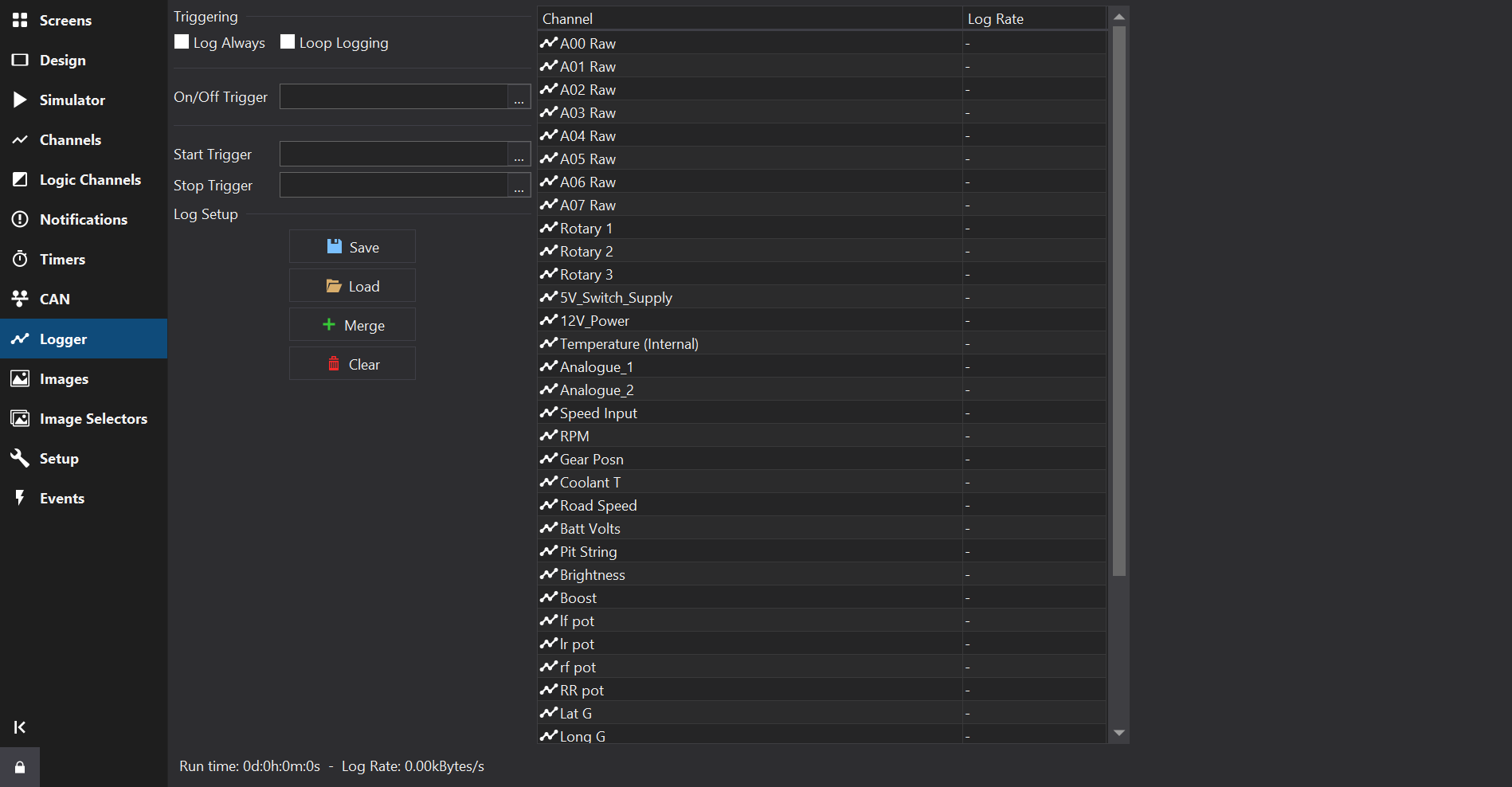
The Logger Tab provides configuration of internal data logging (if supported by the display).
Start / Stop Conditions
The logging can be started or stopped dependent on channel conditions. Every time a new log is started, a new Log Run is created in the logger. Log runs can be downloaded individually with GEMS Data Analysis, which reduces the time taken to download the data.
The log can be started in one of three ways, configured in the Triggering section:
- On/Off Trigger - When the specified input is non zero, the log will be started. When zero, the log will be stopped.
- Start Trigger / Stop Trigger - When the Start trigger is non zero, the log will be started. When the Stop trigger is non zero, the log will be stopped.
- Log Always - The logging starts logging immediately on power on and will log until switched off or until the log is full.
Loop Logging
If Loop Logging is checked, logging continues when the log memory is full by overwriting the oldest data. Otherwise logging stops when the log memory is full.
Logged Channels
The channel list shows the channels that will be logged. Use the add and delete buttons beneath the list to add or remove channels.
The Log Rate column sets the rate at which each channel is logged. Faster rates will reduce the maximum log length.
The Run Time shows the estimated maximum log duration and the total log data rate for the current configuration.
If the attached display does not support logging, a warning is shown.
Log Setup
The logged channels and their rates may be saved to and loaded from log setup files (*.dashlogsetup), so that a logging configuration can be shared between display setups:
- Save - saves the current log setup to a file.
- Load - replaces the current log setup with one loaded from a file.
- Merge - adds the channels from a log setup file to the current log setup.
- Clear - removes all channels from the log setup.
Exporting the Logger Setup
Use to export a setup file containing only the logger configuration.
Special Logger Channels
If the Display Module supports logging, the following special channels are available:
- Log Mem Total (kB) - The total logging memory in kilobytes
- Log Mem Free (kB) - The amount of logging memory remaining in kilobytes
- Log Mem Percent Free - The percentage of logging memory free.
- Log Status - A string representing the current logging status:
The Log Status has the following meaning:
| Log Status | Description |
|---|---|
| Logging not Supported | This firmware does not support logging. |
| Logging stopped | The device is not currently logging. |
| Logging running | The device is currently logging. |
| Log looped | The log has looped. |
| Log memory space low | There is less than 5% of the log memory remaining. |
| Log memory full | The logging memory is full and logging has stopped. |
| Log initialising | The logger is currently processing the setup. |
| LOG SETUP ERROR | There is a problem with the logger setup. |
| LOG OVERRUN | The logger has been unable to write the log data to the memory. Either reduce the number of logged channels or reduce the complexity of the display screen. |
| Log memory worn | There are a significant number of bad blocks in the flash memory. Logging will continue to work but capacity will be reduced. |
Log Markers
The Display Module inserts markers in the data to indicate various states and these are displayed in downloaded log files.
The following markers may be inserted:
| Marker | Description |
|---|---|
| Lap | This is inserted when the beacon input is triggered and is typically used for lap timing. |
| Power | This is inserted when the display is configured to start logging immediately on power up. |
| Log Start | This is inserted when the log start condition is met after power up |
| Overrun | The display has been unable to write the log data to the memory in the time available. Either reduce the number of logged channels or reduce the complexity of the display screen. |