Font Editor
Overview
The font editor is used to select fonts for gauges from either gauge properties Standard Gauge Properties or the Unique Fonts Dialog.
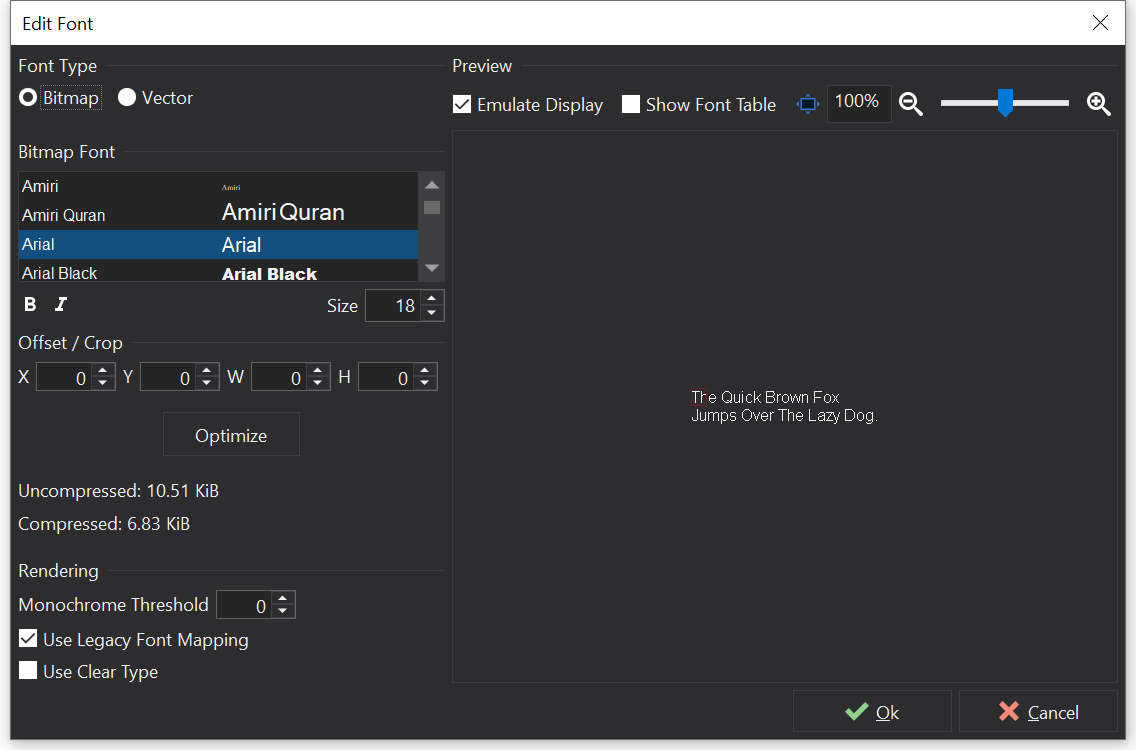
Font Editor
Options
Select Existing Font
Click Select Existing Font to choose a font that is already used in the setup. Reusing existing fonts reduces the memory used by the setup.
Font Type
If the display supports vector fonts then the font type will be available. See Font Types .
Bitmap
If selected, the font will be converted to a monochrome bitmap (rasterized) for use by the display.
Vector
If selected, the font file (outlines) will be sent to the display without rasterization. This allows the display to render different sizes from the same font data and antialias (smooth) the outlines.
Bitmap Font
Available fonts are listed. Select an item from the list to change the font face and adjust the size.
Use the  Italic and
 buttons to change the font style.
Offset / Crop
For bitmap fonts, the character cropping rectangle may be adjusted using the cropping options. It can be useful to display the font table when adjusting the cropping options.
Cropping the font can be useful to reduce the memory usage for bitmap fonts and also when fonts do not report accurate bounding rectangles.
The Uncompressed and Compressed sizes of the bitmap font are shown, to help with optimizing memory usage.
Optimize
Click the optimize button to optimize the cropping rectangle based upon used pixels used by all characters in the font table.
Warning
The set of characters included in the font can change if text within the setup is changed, which could result in unintended clipping of some characters.
Rendering
Monochrome Threshold
Threshold at which anti-aliased pixels are converted to monochrome (1...255). If 0, then the default value is used (170).Use Legacy Font Mapping
Use same font-mapping scheme as in version 1 software.Use Clear Type
Use ClearType rendering prior to conversion to monochrome.Bitmap Font Preview
Emulate Display
Emulate display rendering in the preview.Show Font Table
Preview the generated font table with cropping cell outlines.This can be useful for checking that all characters will be fully rendered, particularly if adjusting cropping:
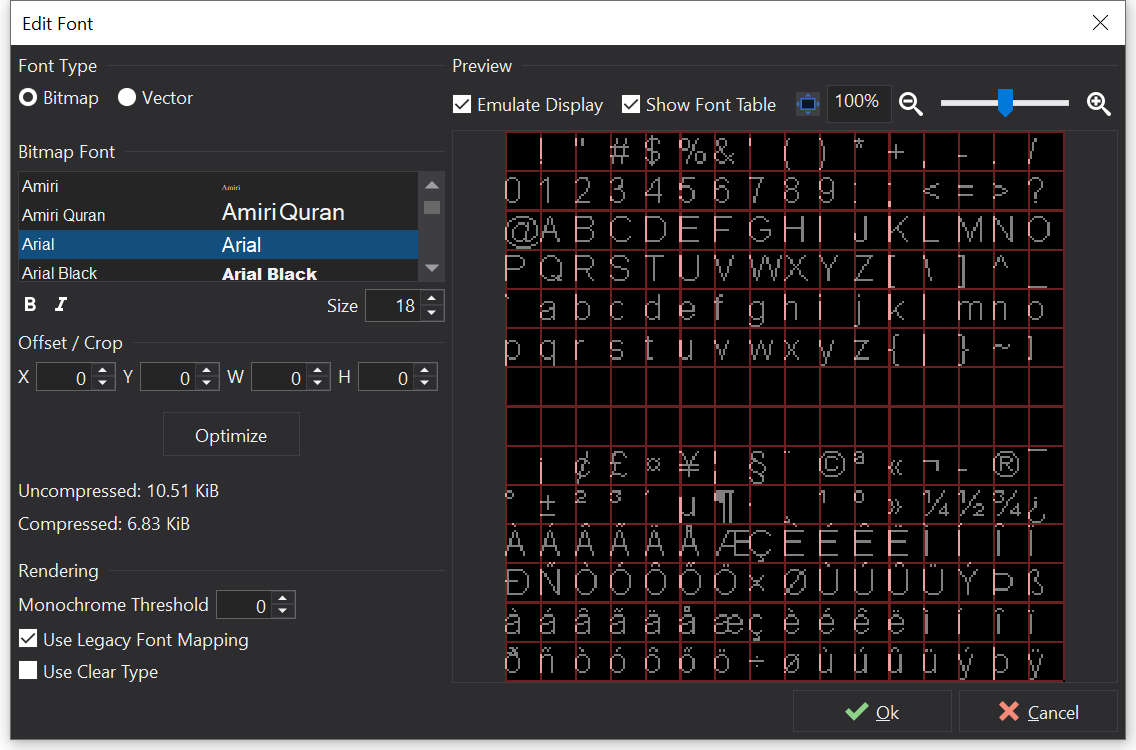
Font Table
Vector Font
Vector fonts may be added to the setup by adding TTF (TrueType) or OTF (OpenType) font files to the setup. The font files are stored directly in the setup file.
Select an item from the list to apply that font to the gauge.
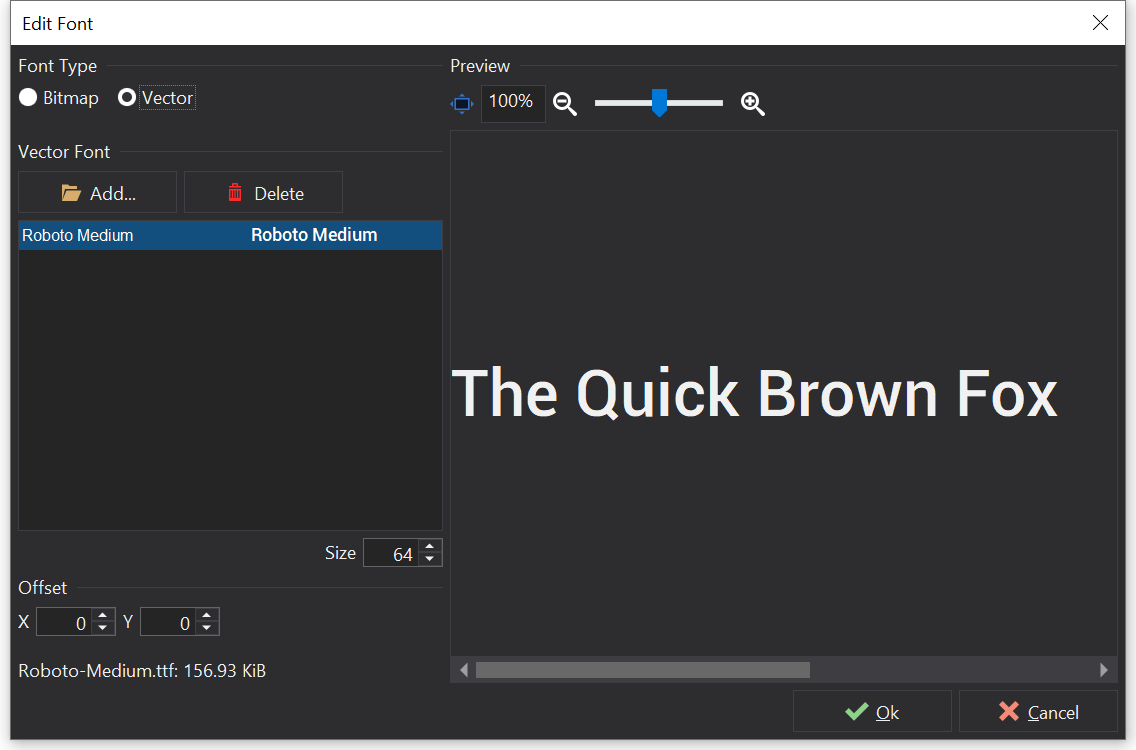
Vector Font Dialog
Adding Vector Fonts
Use the  Add button to select a font file from disk. You will be asked to confirm that you have the licence rights to embed the font in the setup.
Adding fonts will not change the set of fonts installed on your PC for use by other applications.
Warning
Different fonts have different licensing restrictions. You must confirm the license for each font added to the setup and ensure that you are complying with the license by using the font in your setup.
Removing Vector Fonts
Use the  Delete button to remove any fonts that are no longer required.
Vector Font Size
Adjust Size to select a font size for the gauge. With vector fonts, multiple sizes can be used at once for the same font data on different gauges.
Vector Font Offset
Adjust Offset to offset the rendering position of the font. This is rarely required but can be useful in cases where the rendering origin for the font is not in the correct position.
Vector Font Rendering
Check Enable AA Rendering to enable anti-aliasing when rendering the font. This can increase memory usage and may not be supported by all display types / versions.
Memory Usage shows the size of the font in the setup binary.