CDX Model
Overview
Some dash displays such as the GEMS CD6 Dash Display Module support the running of user-defined Simulink® models or compiled user applications on a separate processing core.
Applications are built using the GEMS CDX Model Runtime. Contact GEMS for more information. See also the GEMS CD6 Dash Display Documentation.
CDX models communicate with the display over model IPC (inter-process communication) CAN signals on a virtual CAN port.
The CDX Model page of the Setup Tab shows the model loaded into the setup and provides commands to load, reload, remove and program it. The same commands are available from the Tools menu.
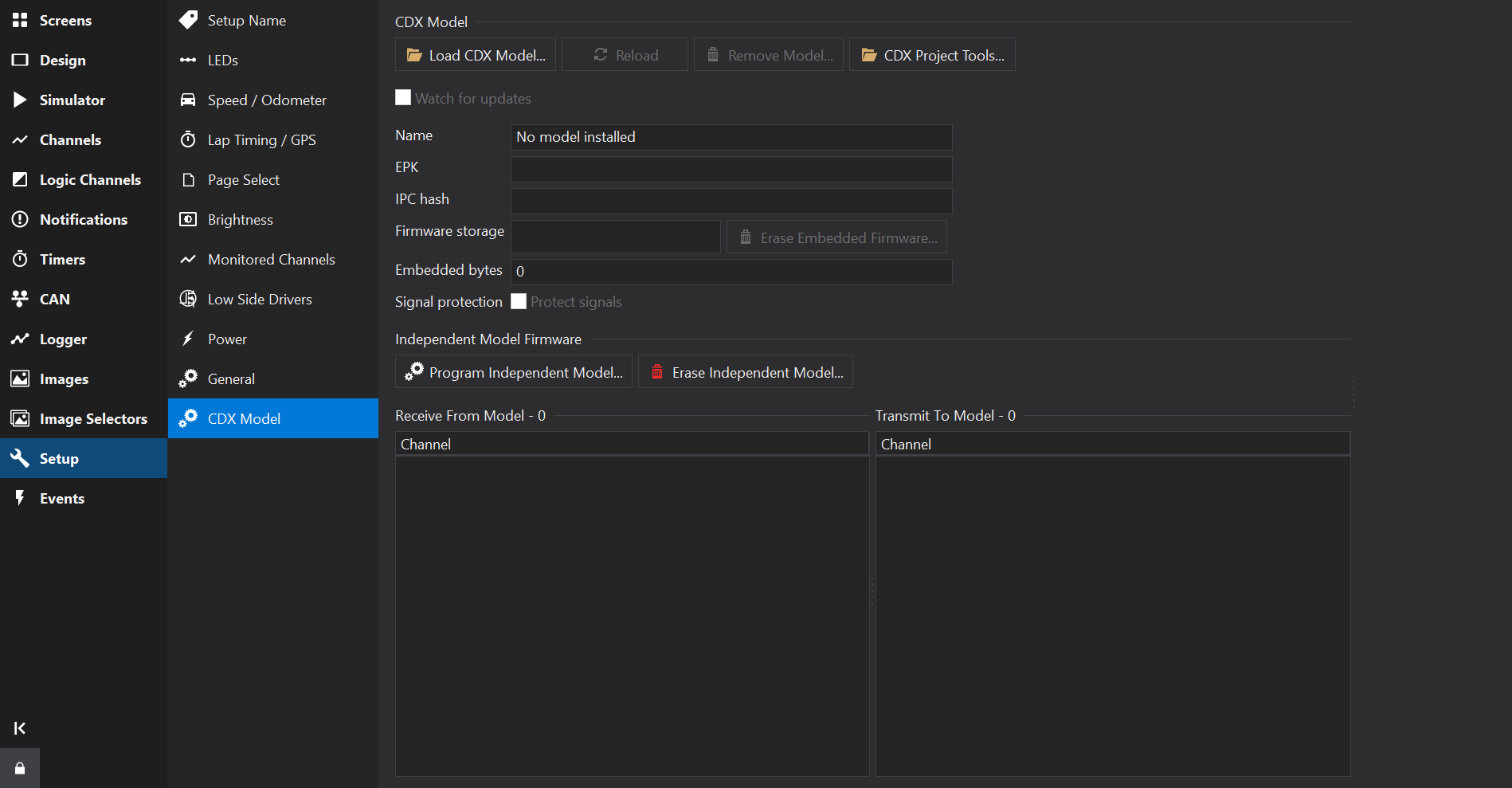
CDX Models are supplied as CDX Model packages (*.cdxmodel files), which contain the model identity, firmware and IPC signal definitions.
Loading a Model
Click Load CDX Model… (or use ) and select a CDX Model package, or drag the package onto the Dash Design window. Loading a model replaces the current model and model IPC signals in the setup.
The Load CDX Model dialog shows the model name and firmware size, and offers a choice of firmware storage:
- Embedded in setup - the model firmware is stored and programmed with the setup. Embedded firmware overrides independent model firmware on the display.
- Independent on display - the model firmware is not included in the setup and is programmed into the display separately.
Check Program to a display after loading to program the model firmware once it has been loaded.
Model Information
| Field | Description |
|---|---|
| Name | The name of the loaded model. |
| EPK | The model’s EPK identifier. |
| IPC hash | The hash identifying the model’s IPC signal definitions. |
| Firmware storage | Whether the firmware is Embedded in the setup or Independent on the display. |
| Embedded bytes | The size of the embedded model firmware. |
| Signal protection | When Protect signals is checked, the model IPC CAN definitions are hidden and protected from editing. Protection is locked when a protected setup is reopened; importing a replacement model unlocks it. |
The Receive From Model and Transmit To Model lists show the channels that the display receives from, and transmits to, the model.
Model Commands
| Command | Description |
|---|---|
| Load CDX Model… | Loads a CDX Model package, replacing the model identity, firmware and IPC signals. |
| Reload | Reloads the model from its original package file, retaining the firmware storage and signal protection settings. Also available as . |
| Remove Model… | Removes the model identity, firmware and all model IPC signals from the setup. This can be undone. Also available as . |
| Erase Embedded Firmware… | Erases the embedded firmware while retaining the model identity and IPC signals. |
| CDX Project Tools… | Opens the CDX Project Tools. Also available as . |
If the CDX Model package file changes on disk, a notification is shown with a Reload button to update the model and IPC signals in the setup. If the package cannot be watched or checked for changes, a warning notification identifies the file and explains how to restore access; it does not interrupt editing with a dialog.
The Watch for updates checkbox controls automatic change tracking. Both notifications include Stop tracking changes, which clears this checkbox without removing the model or its original package filename. Manual Reload remains available and does not restart tracking. Check Watch for updates to restart tracking; loading a model again or reopening the setup also enables tracking again. If tracking cannot start, the checkbox remains unchecked and the warning explains how to restore access. Closing a notification without using Stop tracking changes only dismisses that notification.
Independent Model Firmware
Independent model firmware is programmed into the display separately from the setup:
- Program Independent Model… (or ) programs model firmware into a display. See Firmware Updates .
- Erase Independent Model… (or ) erases the independent model firmware on a display by sending an empty model firmware file. Embedded firmware and setup IPC signals are unchanged.
Firmware embedded in a setup overrides independent model firmware.
Model IPC Signals
Model IPC signals are shown on the CAN Receive and CAN Transmit tabs for the model’s virtual CAN port. When signal protection is enabled, they are hidden and a notice is shown instead.
CDX Project Tools
The CDX Project Tools dialog runs CDX command-line tool steps for a CDX project from within Dash Design:
- Select the Project folder, which must contain
cdx-project.json. Check Store project location in setup to remember the project in the setup. - Configure the tool locations (CDX executable, ARM compiler bin folder and CMake) if they are not on the PATH. Use Check Tools to verify the build tools.
- Check the steps to run, for example MATLAB Generation, Compile + Package, Embed Setup and Deploy. Incremental Build runs only the out-of-date build steps. Check Use Open Setup to embed the model into the currently open setup.
- For Deploy, enter the serial number of the target display or use Get From Display….
- Click Build to run the checked steps in order. The steps stop at the first failure, and programming requires a separate confirmation.
The output of the steps is shown in the dialog; use Copy Output or Open Output in Editor to review it. Tool paths and preferences may be saved to the project using Save Project Preferences Now and Save Tool Paths to Project.
Blank tool fields show paths found on PATH in grey, including the ARM compiler bin folder. These hints are not saved as explicit paths. Empty tool-path settings inherit defaults from lower settings layers; saving omits empty paths, and Save Tool Paths to Project removes cleared path entries without replacing unrelated project settings.
Note
Embedding and deployment use the COM automation interface. Project Tools passes the launching application’s process ID to CDX, so these operations target that instance even when several copies are open. CDX must support --dash-process; an older runtime fails rather than choosing another instance. The CDX output identifies the connected process and executable.
Project Tools does not activate the registered executable or change COM registration to select an instance. Keep the launching application open and run CDX at the same elevation level. Standalone CDX commands without --dash-process retain registered COM activation.