Aspect Selector
The Aspect Selector View provides a drop-down list of named Calibration Aspects. It enables switching between predefined groups of calibration settings, for example configurations for different sensors.
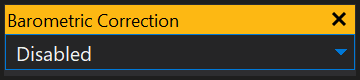
Selecting an item applies its aspect to the current calibration. Only the settings included in that aspect are changed.
The view also compares the current calibration with its items and updates the displayed selection when the calibration changes:
- Match - Displays the name of the matching item.
- Flexible Match - Displays the item name prefixed with
*in orange when its non-flexible settings match but one or more flexible settings differ. - No Match - Displays the configured No Match Text in orange when no item matches.
Editing Items
With the layout unlocked, right click on the view and select Edit Items… to open the Aspect Selector Items dialog.
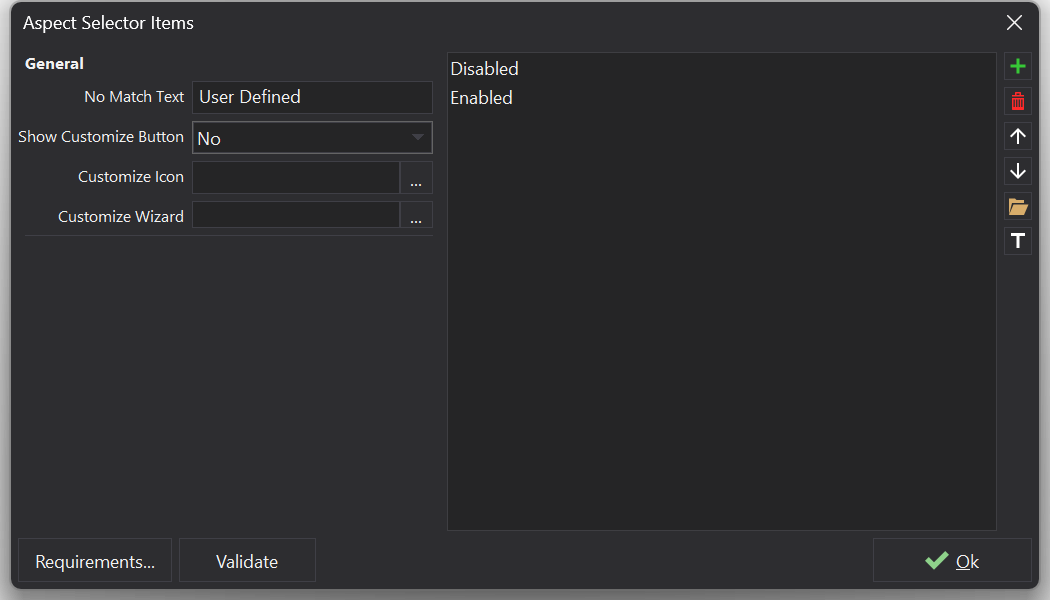
- Use the folder button to import an existing calibration aspect file.
- Use Requirements… to define the settings expected in the aspects. Once requirements have been defined, use the add button to create an item from the current calibration values, enter a name and confirm its contents.
- Use the rename, remove, up and down buttons to organise the list.
- Double click on an item to inspect or edit its aspect contents as XML.
- Use Validate to check the aspects against the requirements.
Requirements can mark settings as flexible, allowing the view to recognise an item even when those settings have been adjusted. Selecting the item again still applies its stored aspect values, including flexible settings.
View Properties
Properties editable via the properties editor.
| Property | Script ID | Description |
|---|---|---|
| Title | title |
The title of the window. |
| Script ID | id |
The scripting ID of the window. Can be used as an alternative to the title for searching for windows from scripts. |
| Tool Tip | tooltip |
Window tool tip. |
| Font Size | font_size |
Size of the text. |
| No Match Text | no_match_text |
Text to display if no match is found. |
| Show Customize Button | show_customize_button |
Wizard to display if customize button is clicked. |
| Customize Icon | customize_button_icon |
Wizard to display if customize button is clicked. |
| Customize Wizard | customize_wizard |
Wizard to display if customize button is clicked. |