Converting Setups
Overview
A setup created for one display type may be converted to a different display type, for example when moving to a newer display model.
Use to select a setup file and convert it, or to convert the setup that is currently open.
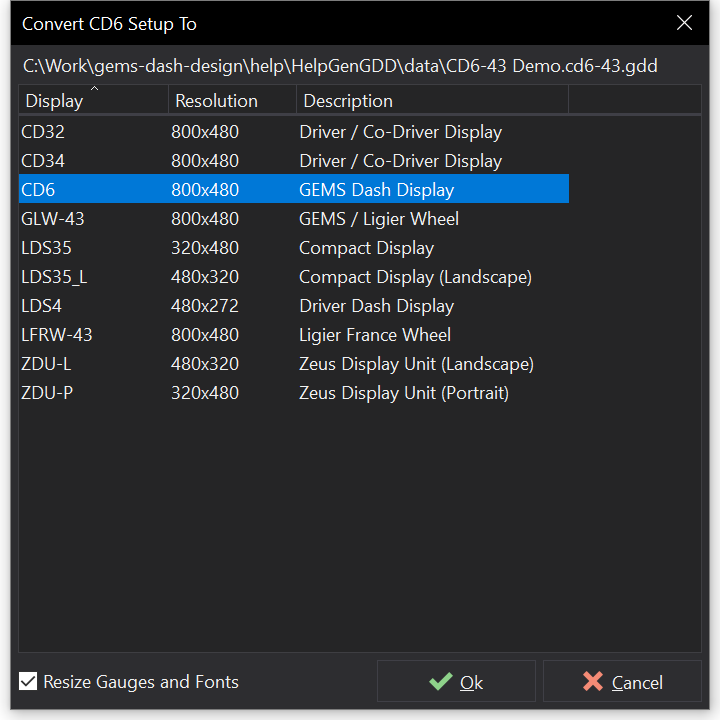
Converting a Setup
- Select the setup to convert (for only).
- In the Convert Setup To dialog, select the target display type from the list.
- Check Resize Gauges and Fonts to scale gauges and fonts to the target display’s screen resolution. Uncheck it to keep the original positions and sizes.
- Click OK. The conversion progress and any warnings are shown in the Convert Setup dialog.
The converted setup is opened in Dash Design. It is named after the original setup with " Converted" added (e.g. MySetup Converted) in the same folder; it is not saved until you save it. The original setup file is not modified.
Tip
Review the conversion log and run the Setup Checker after converting a setup.
Conversion Warnings
Display types differ in the features they support, so some items may not be converted. The conversion log reports, for example:
- Gauge types that are not supported by the target display.
- Screens, CAN ports or predefined channels that the target display does not have.
- Channels with sensor types that are not supported by the target display. Where possible, colour function tables are converted to colour maps.
- Differences in page-select numbering between the source and target displays. See Page Select .
Display-Specific Conversions
Some conversions adjust the setup for the target display:
- When converting to or from LDS4, a warning is shown because LDS4 firmware variants use different page numbering conventions. Check whether the installed firmware requires 0 or 1 to select page 1.